Logitech MX Brio
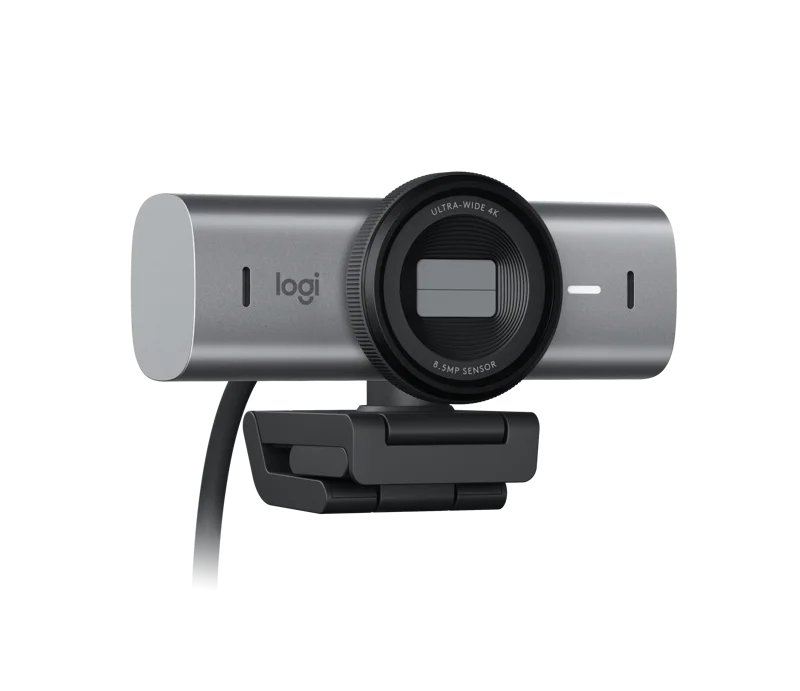
A 4K webcam with an 8.5 MP sensor, adjustable field of view, autofocus, a privacy shutter and a Show Mode for desk sharing.
Specifications
| Sensor | 8.5MP Sony STARVIS |
|---|---|
| Max Resolution | 4K @ 30fps / 1080p @ 60fps |
| Field of View | 90 / 78 / 65 degrees diagonal |
| Focus | Advanced autofocus, glass lens |
| Zoom | 4x digital |
| Microphones | Dual beamforming, noise reduction (up to 1.2m) |
| Connection | Detachable USB-C to USB-C cable (1.5m), USB 3.0 |
| Features | RightLight 5, Show Mode, privacy shutter |
| Mounting | Universal clip, 1/4-inch tripod thread |
| Weight | 137g (webcam only) |
The Logitech MX Brio is a USB-C webcam that records 4K video at 30 frames per second or 1080p at 60. It sits at the upper end of the desk webcam range, and its features are aimed at people who spend a lot of time on video calls, who record or stream, or who simply want to look clear in poor lighting. This page explains what the specifications mean in daily use, how to set the camera up well, and which kinds of buyer will get real value from it.
Resolution, frame rate and the sensor
The camera is built around an 8.5-megapixel Sony STARVIS sensor, which is the resolution needed for a 4K image. In practice, most video-call software does not send 4K to the other person; it compresses the picture to something like 720p or 1080p to save bandwidth. So do you need 4K? For calls alone, not strictly. What a higher-resolution sensor gives you is headroom: you can zoom in digitally, crop into a part of the picture, or record locally in higher quality without the image turning soft. The camera offers 4x digital zoom, and starting from a 4K frame gives that zoom more detail to work with than a 1080p starting point would.
The frame-rate options are worth understanding. At 4K the camera runs at 30 fps, which suits recording and most calls. At 1080p it can run at 60 fps, which makes motion look smoother; that is useful for streaming, or if you gesture a lot on camera. Choose 4K when detail matters and 1080p60 when smooth motion matters. The sensor size and pixel quality also matter more than the resolution number when the room is dim, and our news piece on webcam sensor size and low-light performance explains the reasoning.
Lens, focus and field of view
The lens is glass, and focus is handled by an advanced autofocus system that follows you if you lean forward or back. The diagonal field of view can be set to 90, 78 or 65 degrees. A wide setting shows more of your room, which is useful when two people share the frame; a narrow setting crops into just you and hides more of the background. Many people find a middle or narrow setting more flattering for calls, because it reduces the wide-angle stretching that can appear at the edges. Try each and look at the preview before joining an important meeting.
Image processing and light
Logitech calls its image processing RightLight 5, with face-based enhancement. It adjusts autofocus, HDR, white balance and exposure to help in conditions from dim rooms to bright windows. In plain terms, the camera tries to keep your face correctly exposed even when the background is much brighter. That is a very common situation in a home office, where a window sits behind a monitor. No software fully replaces good light, however. The single most effective upgrade for any webcam is placing a soft lamp in front of you, slightly above eye level. If you want to understand how a dedicated camera compares with a laptop's built-in one, our webcam versus laptop camera comparison is a good read.
For people who prefer manual control, the Logi Options+ and G HUB apps offer fine adjustments such as ISO, shutter speed, white balance, tint and vibrance. There is also an automatic mode if you would rather not touch anything. The software is available for Windows and macOS.
Audio
The camera includes dual beamforming microphones with noise reduction, with a stated pick-up range of up to 1.2 m. Beamforming means the microphones concentrate on sound coming from in front of the camera and reduce noise from other directions. For casual calls, that is often enough. If you record voice-overs, host a podcast or take many long calls, a separate headset or microphone will nearly always sound fuller and closer. For a headset that pairs well with a webcam setup, see our headset buying guide.
Privacy and Show Mode
A built-in privacy shutter can be rotated to cover the lens completely when you are not on a call, which is reassuring and more reliable than a sticker. Show Mode is a feature aimed at teachers, designers and anyone who wants to share what is on the desk. You tilt the camera down and the software presents the desk surface, so you can show a sketch or written notes to the other participants without needing a second camera. It is a small feature that can transform certain kinds of meetings and lessons.
Connection and mounting
The camera connects with a detachable USB-C to USB-C cable, 1.5 m long, and needs a USB-C port that supports the USB 3.0 standard; the cable being detachable means you can swap it for a longer one. The webcam mounts with a detachable universal clip that fits laptops, LCD displays and monitors, and there is a standard quarter-inch thread for tripods and arms. That thread is handy if your monitor is curved or very thin, or if you want to place the camera on a small stand at eye level. The webcam alone weighs 137 g. It works with Windows 10 or later and macOS 10.15 or later, and with ChromeOS and Linux at a basic level using the standard UVC driver, without Logitech's software features. It is certified for common conferencing services such as Teams, Zoom and Google Meet, and works with OBS, FaceTime and Streamlabs.
Price and who should buy it
The listed price is 199.99 USD, in pale gray, and it is also offered in other colours on Logitech's range. That places it above basic HD webcams, and the question is whether you will use the extras. It is a good fit for hybrid workers who spend hours a day on calls, for teachers and presenters who benefit from Show Mode, and for streamers who want a sharp image and the option to fine-tune it. If you mainly join a weekly team meeting, a cheaper camera will do the job. For a step down within Logitech's own range, see the Logitech Brio 500, and for a camera that prioritizes uncompressed 1080p60 video for streaming, look at the Elgato Facecam MK.2.
To browse everything we list, visit the webcams category, or read the webcam buying guide for home office and streaming for a structured way to decide what you need.
Getting the best picture
Place the camera at eye level, ideally at the top of the monitor and centred, so that you look at the person on screen as if you were looking at the lens. Set the lens to the field of view that suits your room. Put a soft light in front of you rather than behind. Clean the lens gently with a microfiber cloth, because fingerprints cause haze. Finally, close the shutter when the camera is idle; it is a simple habit that removes any doubt.
The short version
The MX Brio is a capable, feature-rich webcam: a 4K sensor, adjustable field of view, autofocus, a privacy shutter and useful software controls. It is more than most people need, but for anyone whose day is full of video calls or who wants a high-quality image to work with, it is a well-rounded choice.