Razer Razer Kiyo Pro Ultra
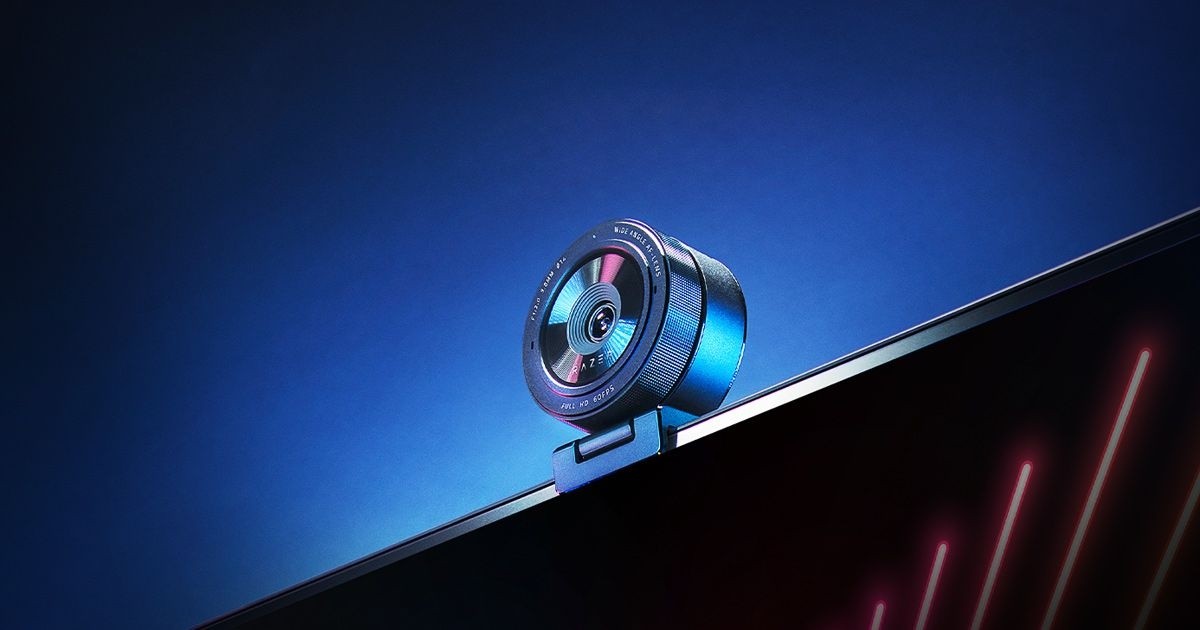
A 4K webcam built around a 1/1.2-inch Sony STARVIS 2 sensor and an F/1.7 lens, with face-tracking autofocus, HDR at 30 fps, a lens-based background blur and a twist-to-close privacy shutter.
Specifications
| Sensor | Sony STARVIS 2, 1/1.2 inch, 2.9 um pixel size |
|---|---|
| Lens | Custom ultra-large F/1.7 aperture |
| Video | Raw 4K 30 fps or 1080p 60 fps; output as uncompressed 4K 24 fps, 1440p 30 fps or 1080p 60 fps |
| HDR | Yes, at 30 fps |
| Autofocus | AI face-tracking autofocus and auto exposure |
| Controls | Zoom, pan, tilt, ISO, shutter speed via Razer Synapse |
| Memory | On-board memory for last saved configuration |
| Privacy | Built-in shutter (twist the frame) plus separate lens cover |
| Awards | 8 Best of CES 2023 awards (per Razer) |
The Razer Kiyo Pro Ultra is a 4K webcam that makes one argument above all others: a bigger sensor gives a better picture. Razer says it carries the largest sensor ever fitted to a webcam, a 1/1.2-inch Sony STARVIS 2 chip with 2.9 micron pixels, behind a custom F/1.7 lens. Everything else on the page, from the HDR mode to the autofocus, is built around that pairing. This write-up is based on Razer's own product page. We have not tested the camera, and the page does not publish a full specification table, so where a number is not given we say so instead of filling the gap.
The sensor and the lens
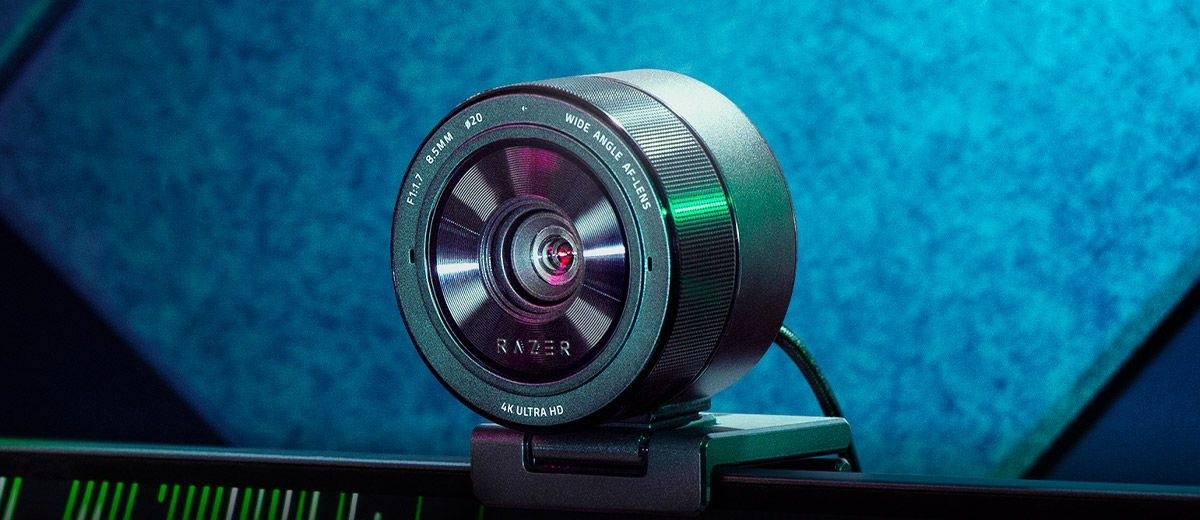
Razer's headline claim is that the sensor captures 3.9 times more light than other webcams. The page backs this with a simple graphic that sets three sizes side by side: a 1-inch sensor as found in some digital cameras, the Kiyo Pro Ultra's 1/1.2-inch chip, and the 1/4-inch sensor typical of a standard webcam. The Kiyo sits much closer to the camera end of that line than to the webcam end. The company also gives the pixel pitch, 2.9 micrometres, which matters because larger photosites collect more light per pixel and usually produce cleaner footage in dim rooms. The lens is described as custom, ultra-large, with an F/1.7 aperture. A wide aperture lets in more light and also produces a shallower depth of field, and Razer leans on that second effect: the page promotes a natural background blur created by the optics themselves, with no software mask involved. If you have been bothered by the ragged edges that software blur leaves around hair and glasses, this is the appeal. It is worth being realistic, though. A webcam sits close to its subject with a small sensor compared to a camera, so the optical blur will be gentle rather than dramatic. For a broader look at why sensor size matters in dim rooms, our article on webcam sensor size and low-light performance explains the trade-offs in plain terms.
Resolution, frame rates and the uncompressed output
The page says the camera can capture raw 4K at 30 frames per second or 1080p at 60 frames per second, and that its processor converts that footage to uncompressed 4K at 24 fps, 1440p at 30 fps or 1080p at 60 fps for delivery to your streaming or conferencing software. The word uncompressed is the interesting part. A lot of USB webcams compress heavily before the signal ever leaves the device, which saves bandwidth but costs detail. Razer positions this camera as one that passes along as much of the sensor's data as the connection allows. What the page does not say is which USB standard is required, how much bandwidth the uncompressed modes need, or which software setups can actually receive them, so check the current support documentation before you plan around the top modes. The company also states that HDR works at 30 fps, adding detail and texture to the darkest and lightest tones and correcting areas that are over or underexposed. HDR on a webcam is a processing feature, and it can look a little flat or heavy-handed depending on the room, so it is worth switching it on and off against your own lighting.
Autofocus and exposure
Two features are presented as AI-powered: face tracking autofocus and auto exposure. The camera is meant to follow your face, hold focus on it and adjust light levels so your skin stays correctly exposed as the room changes. For a streamer who leans forward to a keyboard and back again, or for someone on a call who moves around, steady focus is more valuable than raw resolution. Razer does not say how fast the focus system reacts, what its minimum focus distance is, or how many face-tracking points it uses. Those are exactly the details that separate a smooth autofocus from one that hunts, and they are the details we would look for in an independent review before buying.
Control through Razer Synapse
The camera exposes a wide range of manual settings in Razer Synapse: zoom, pan, tilt, ISO, shutter speed and more. The company adds that the camera has on-board memory for your last saved configuration, which means your tuned look follows the camera rather than living only in software. That is useful if you move between a desktop and a laptop, or if you share the camera between machines. Manual control matters most for people who want a consistent image across a long session. Locking exposure and white balance avoids the slow drift that automatic modes can produce when a monitor changes brightness behind you. If your setup already includes lighting, the manual controls let you take advantage of it rather than fight the auto-exposure.
The privacy shutter
Privacy is handled in a distinctly mechanical way. Twisting the frame of the webcam closes a built-in shutter over the lens, so you can end a stream or a meeting and know the camera cannot see anything. Razer also includes a separate lens cover for protection. A physical shutter has one clear advantage over an indicator light or a software toggle: it works regardless of what the computer thinks it is doing. Many people who work from home appreciate that, and it is a small point in the camera's favour for shared or family spaces.
What the page leaves out
It is only fair to list the missing information. The page does not give a price, a field of view, a weight, the connection type or cable details, a warranty period, or operating system requirements in text form. It does not say how the camera mounts to a monitor or a tripod, although it is shown clipped on top of a screen. Some of this may appear in the box contents or the support section, and we would treat any of it as unconfirmed until it does. The page also quotes several glowing press lines and mentions eight Best of CES 2023 awards. Treat these as the manufacturer's selection of praise rather than as test results. We have stripped all marketing superlatives from the specification summary above and kept only what Razer states as a feature.
Who it suits
The Kiyo Pro Ultra is aimed at streamers and creators who care about the look of their video and who already control their lighting. If you only join a few video calls a week, a simpler camera such as the Logitech Brio 4K may serve you well for less money and with less to configure. If you are weighing a large-sensor camera against what your laptop already offers, our comparison of external webcams and built-in laptop cameras is a good starting point, and the webcam buying guide for home office and streaming walks through the other choices that matter, from field of view to microphones. For a direct comparison with another big-sensor option, the Elgato Facecam 4K sits in a similar space, and you can browse every model on our webcams page.
Our take
On paper the Kiyo Pro Ultra delivers a rare combination: a large sensor, a fast lens, HDR, face tracking and a hardware privacy shutter in one device. The most convincing parts are the sensor and the aperture, since those are physical and cannot be faked by software. The open questions are practical ones that the page does not answer, namely price, mounting, bandwidth needs and exact fields of view. If those answers turn out well, this is a strong option for anyone who wants their camera to look like a camera. Until then, it is a promising webcam with an unusually bold set of claims, and we recommend confirming the missing details with Razer before you commit.