Razer Razer Kiyo Pro
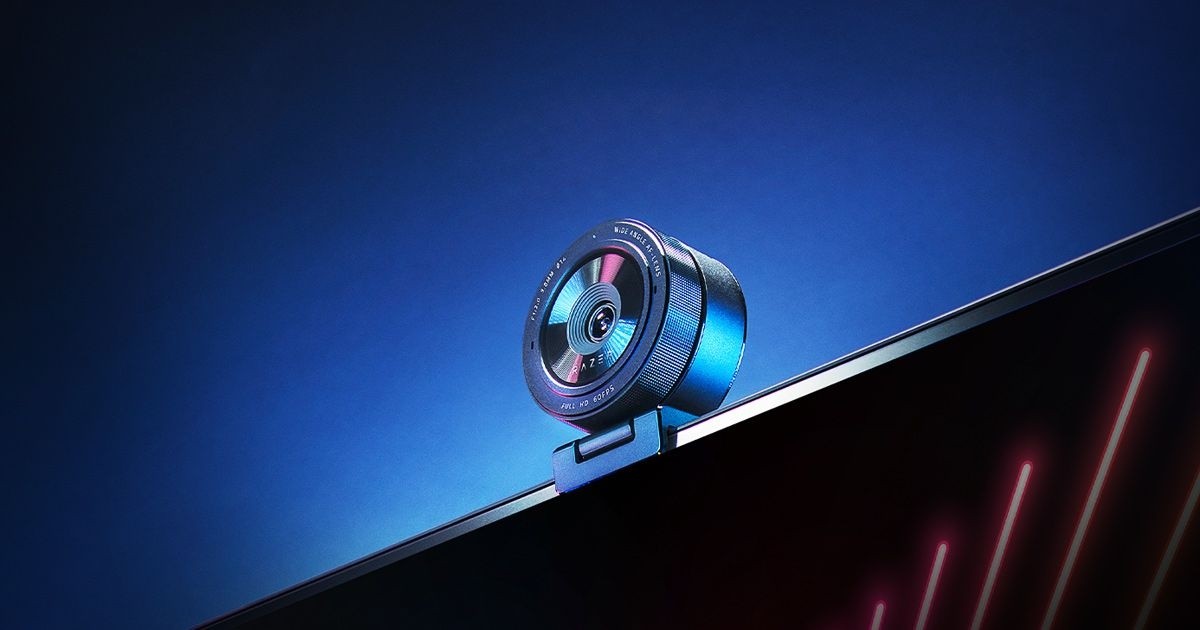
A 1080p USB webcam with a 1/2.8-inch Sony STARVIS sensor, uncompressed 60 fps video, HDR at 30 fps, three selectable fields of view and a Gorilla Glass lens cover.
Specifications
| Sensor | Sony STARVIS CMOS 1/2.8 inch, 2.9 um pixel size |
|---|---|
| Video | Uncompressed 1080p 60 fps |
| HDR | Yes, at 30 fps |
| Field of View | Three options (narrow, medium, wide) in Razer Synapse; angles not stated |
| Interface | USB 3.0 recommended (USB 2.0 supports less resolution for some formats) |
| Software | Razer Synapse; works with OBS and XSplit |
| Lens Cover | Corning Gorilla Glass 3 |
| Mount | Adjustable mount, detachable for tripod (tripod not included) |
| Privacy | Privacy cover included |
| Warranty | Up to 1 year |
The Razer Kiyo Pro is a Full HD webcam that sits a step below the company's newer 4K model but still aims well above the basic cameras that ship with most laptops. Razer's page describes a 1080p USB camera with a high-performance adaptive light sensor, uncompressed video at 60 frames per second, an HDR mode and a wide-angle lens whose field of view you can change in software. This guide is built from that product page. We have not tested the camera, and the page leaves out several numbers we would want, so we keep the facts and the gaps clearly separated.
The sensor and why light matters
The core of the Kiyo Pro is a Sony STARVIS CMOS sensor of 1/2.8-inch size with pixels of 2.9 micrometres, paired with a large-aperture lens. Razer calls the combination an adaptive light sensor, meaning the camera is meant to cope with a very wide range of lighting, from dim rooms to bright windows, and to deliver a cleaner picture than a plain webcam in either case. A 1/2.8-inch sensor is far from the largest you can buy, but the pixel size is the important detail: bigger pixels collect more light, and more light means less grain. The page does not state the aperture value, so we cannot give a number for it. If you want to understand how these choices affect your picture, our article on webcam sensor size and low-light performance covers the basics, and it applies directly to a camera like this one.
Uncompressed 1080p at 60 fps
The headline video feature is uncompressed 1080p at 60 frames per second. Razer says a cutting-edge processor delivers this straight to your stream. Many webcams compress their output in the camera to save bandwidth, which can soften detail and add blocky artifacts in motion. Sending uncompressed video avoids that, but it needs a fast connection, which is why the page recommends USB 3.0. The page puts the camera signal at 5 GB/s, which is almost certainly meant to read 5 Gb/s, the nominal speed of USB 3.0. We mention the typo only because bandwidth really does matter here. The company's support notes say to avoid USB hubs and extensions, since an external hub may degrade the signal, and to avoid USB 2.0 ports and cables, which support less resolution for some video formats. For the best result, plug directly into a USB 3.0 port with a compliant cable. That advice is easy to follow on a desktop and a little harder on a laptop that has only one port and relies on a dock, so check your connection before blaming the camera.
HDR at 30 fps
When you want more vivid colours, the camera offers HDR at 30 frames per second. Razer says it increases dynamic range and corrects areas that are over or underexposed. HDR on a webcam is a processing step, not magic, and its effect varies with the room. It can help when a bright window sits behind you, and it can look slightly processed in even lighting. Because HDR is limited to 30 fps on this camera, you trade the smoother 60 fps motion for it. Try both before a stream and keep the one you prefer.
Field of view and framing
A large-aperture, wide-angle lens gives the camera room to show more of your setup. The page says three field-of-view options are available in Razer Synapse, named narrow, medium and wide, though it does not give the angles in degrees. A narrow view suits a close head-and-shoulders shot on a call, while the wide view fits a desk with equipment or two people in frame. Because the choice is a software setting, you can change it without moving the camera. For help deciding which framing and features you actually need, the webcam buying guide for home office and streaming lists the questions to ask.
Controls in Razer Synapse
The camera is configured through Razer Synapse, and the page mentions brightness, contrast, saturation and more, plus image resolution, video resolution, image quality, field of view and focus in the support notes. You can save preferred settings as profiles and switch between them quickly, which is useful if your lighting changes between morning and evening. The camera also works with streaming software, and Razer recommends OBS or XSplit. Synapse is a Windows application, and the support notes say to make sure no other application is blocking the camera and that the Kiyo Pro is your preferred device if the PC has a built-in camera. We found no mention of macOS support on the page, so Mac owners should confirm compatibility first.
Build, mounting and privacy
The adjustable mount sits securely on a monitor or a table and can be detached so the camera can be fixed to a tripod, which is not included. Razer includes a privacy cover that fits easily over the lens and also protects it when the camera is stored. The lens itself is covered by Corning Gorilla Glass 3, which Razer says offers four times the scratch resistance of other aluminosilicate glasses. That claim comes from the company and was lab-tested by it, so treat the factor as a marketing figure, though the use of a hard glass cover is a sensible choice for something that sits in a bag or on a desk. The camera has a microphone, and the support notes explain how to make it the default recording device, but the page gives no specification for it. Warranty is up to one year, shorter than the two years offered for several of the company's other products.
What the page does not say
There is no price on the page we read. There is also no weight, no cable length, no stated aperture, no angle in degrees for the three fields of view and no microphone specification. The page promotes sibling models, the Kiyo with a built-in ring light and the more basic Kiyo X, so it is clear that the Kiyo Pro is meant to be the performance model of the family rather than the cheapest.
Who it suits
The Kiyo Pro makes sense for someone who wants a sharper, better-lit picture than a laptop camera and who values smooth 60 fps video, but who does not need 4K. If you would like a proven alternative from another maker, the Logitech C920S Pro HD is a long-standing 1080p choice with a privacy shutter, and the Logitech StreamCam targets creators in a similar way. If you want a larger sensor and 4K, look at the newer Razer Kiyo Pro Ultra, and for a broader look at whether an external camera is worth buying at all, our comparison with built-in laptop cameras gives a clear answer. You can also see every model on our webcams page.
Our take
The Razer Kiyo Pro is a straightforward proposition: a well-specified 1080p camera with a decent sensor, uncompressed output, HDR, flexible framing and a genuine privacy cover. Its strengths are practical rather than flashy, and its weaknesses are mainly the information the page omits and the requirement for a clean USB 3.0 connection. If you stream or join calls often and have a free USB port, it deserves a place on your shortlist. Confirm the price, the platform support and the exact fields of view with Razer before buying, and use our guides to decide whether you need more than Full HD.