Webcam Buying Guide for Home Office and Streaming in 2026
Laptop webcams have gotten better over the years, but the gap between "acceptable for a quick call" and "genuinely good on camera" is still wide, and it's a gap a dedicated external webcam closes almost instantly. The category splits cleanly by use case: webcams built for reliable, low-effort video calls, and webcams built for the image quality and manual control streaming and content creation demand. Buying the wrong one for your use case either wastes money on features you'll never touch or leaves you frustrated by limitations you didn't know to look for.
The home-office case: Logitech Brio 500
The Logitech Brio 500 is built almost entirely around removing friction from daily video calls, and it succeeds at that specific job better than webcams with objectively higher specs. Its 1080p sensor is modest on paper next to 4K competitors, but the feature that actually matters for calls is RightLight 4 — automatic exposure correction that keeps you visible and well-lit against a bright window or a dim room without you touching a single setting. RightSight auto-framing keeps you centered in frame as you shift in your chair, which sounds minor until you've sat through a call watching someone slowly drift out of shot.
The physical privacy shutter is a small detail that ends up mattering daily — closing it takes one second and gives genuine peace of mind that a software toggle just doesn't provide in the same way. Dual noise-reduction microphones are good enough to skip a separate USB mic for most calls, which for a webcam aimed at people who don't want to manage extra hardware is exactly the right tradeoff to make.
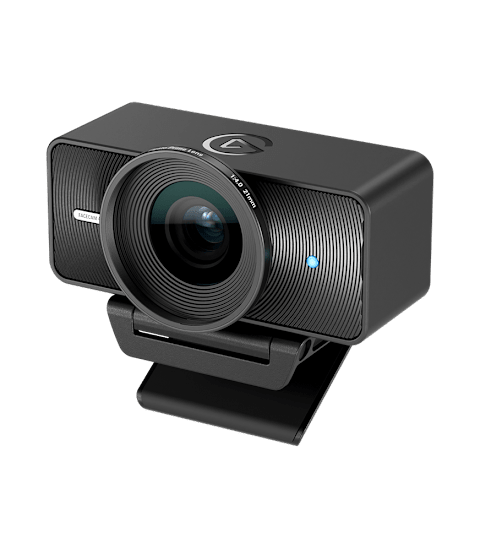
The streaming case: Elgato Facecam 4K
The Elgato Facecam 4K takes the opposite approach, leaning on genuine hardware quality rather than automated conveniences. Its 1/1.8" Sony STARVIS 2 sensor is dramatically larger than what's found in most webcams in this price range, and that sensor size is the actual reason its video looks noticeably better in typical indoor lighting — larger sensors gather more light, which means less grain, better color accuracy, and a more natural depth to the image without needing a ring light blasting at full power to compensate.
4K capture at 60fps gives streamers and content creators real headroom to crop, reframe, or downscale in post without losing quality, something a 1080p sensor simply can't offer no matter how good its processing is. The fixed-focus lens with a 49mm filter thread is a deliberate choice aimed at the streaming crowd specifically — no autofocus hunting mid-stream, and the ability to attach standard camera filters for anyone who wants more control over the final look than software alone provides.
Resolution and frame rate: what you actually need
It's tempting to treat 4K as an automatic upgrade over 1080p, but for a webcam specifically the calculus is different than it is for a primary camera. Most video call platforms downscale incoming video to 720p or 1080p regardless of what you send, meaning a 4K webcam's resolution advantage in a Zoom or Teams call is mostly wasted — what you're actually paying for in that scenario is a better sensor and lens producing a cleaner 1080p output, not literal 4K pixels arriving on the other end. Where 4K genuinely pays off is recorded content: streaming platforms, YouTube uploads, and anything where the raw footage itself is the deliverable rather than a live call being compressed in transit.
Field of view and framing
Field of view is one of the most underrated webcam specs because it directly determines how much of your desk setup and background ends up visible on camera. A wide field of view is flattering for group calls or showing off a desk setup on stream, but it can distort facial features at close range and reveal more background clutter than you'd like on a professional call — most well-designed webcams, including both of these, offer configurable field of view specifically to solve that tension rather than forcing one fixed framing on every use case.
Lighting matters more than the camera itself
An uncomfortable truth in this category: a mediocre webcam with good lighting will consistently outperform an excellent webcam in a dark room. Before spending on the camera itself, positioning a light source — even something as simple as facing a window or adding an inexpensive desk lamp — solves more of the "why do I look bad on camera" problem than most sensor upgrades do. The Facecam 4K's larger sensor narrows that gap in genuinely dim conditions, but it doesn't eliminate the value of getting basic lighting right first.
Software and background effects
Both webcams ship with companion software — Logitech's tools favor one-click automated adjustments suited to people who just want it to work, while Elgato's Camera Hub leans toward manual exposure, white balance, and color controls suited to people who want to dial in a specific look and keep it consistent stream after stream. Neither approach is objectively better; it depends entirely on whether you want to think about camera settings at all or want maximum control over every variable.
Which one should you buy
For daily video calls, remote meetings, and anyone who wants a webcam that quietly does its job without a setup ritual, the Brio 500's automatic framing and exposure correction make it the easier, more sensible choice. For streaming, recorded content, or anyone whose on-camera image is directly tied to their work — creators, presenters, anyone building an audience — the Facecam 4K's larger sensor and manual controls are worth the extra cost and setup effort. Pairing either one with a solid headset rounds out the two things that actually determine how professional a video call or stream looks and sounds — camera and audio matter far more than any other desk accessory for this specific use case.
Mounting and desk placement
Where the webcam physically sits changes the result almost as much as the sensor inside it. A monitor-top clip is the default for a reason — it puts the lens roughly at eye level, which reads as natural eye contact on the other end of a call, whereas a webcam perched on a laptop lid well below eye level tends to produce an unflattering upward angle that shows more ceiling than face. For anyone running a multi-monitor setup, positioning the webcam on the display you actually look at while talking — not just the nearest one — makes a bigger difference to perceived eye contact than any software feature either of these cameras offers.