Keychron Nape Pro
A slim trackball that sits below your keyboard, with a 25 mm ball, six customizable buttons, a control dial and three connection modes.
Specifications
| Type | Trackball, below-keyboard design |
|---|---|
| Ball | 25mm |
| Sensor | PixArt 3222 |
| Polling Rate | 1000Hz (1K version) |
| Buttons | 6 customizable + adjustable control dial |
| Placement | 8-angle placement |
| Connectivity | 2.4 GHz, Bluetooth, USB-C wired |
| Firmware | ZMK customization |
The Keychron Nape Pro is not a mouse in the usual sense. It is a compact wireless trackball designed to sit below the keyboard, so that your hand can stay near the home row and steer the pointer with a thumb or fingers instead of sliding a mouse across the desk. It is an unusual product, so this page explains what it does, who benefits from that design, and what you should try to find out before you buy.
Why a trackball under the keyboard?
A traditional mouse asks you to move your whole hand and forearm across the desk. Every time you switch from typing to pointing, your hand travels away from the keyboard and back again. Over a working day, that adds up to a lot of small reaches. A trackball turns that around: the device stays still and you roll the ball. Keychron's Nape Pro goes one step further by placing the device in front of the keyboard, right under your hands, so that reaching for the pointer becomes a small movement of the thumb or fingers. Keychron calls this home-position control, and it is the core idea behind the product.
The practical benefits are easy to picture. The desk space that a mouse and a mouse pad would occupy is freed up, which is useful on a small desk or a shared table. Because the device does not move, you can use it on a surface that is unsuitable for a mouse, such as a sofa arm or a lap desk. People who spend much of the day typing and pointing in short bursts, such as writers, developers, spreadsheet users and editors, tend to appreciate the reduced hand travel. For many, that also means less strain on the shoulder and forearm, although comfort is personal and nothing replaces trying one for yourself.
The ball, the sensor and the buttons
The Nape Pro has a compact 25 mm trackball and uses the PixArt 3222 sensor. The 1K version listed by Keychron reports at a polling rate of 1,000 Hz, which is the normal rate for office and everyday use. For a device designed around precise, slow, deliberate pointing rather than fast flicks, that is entirely appropriate. If you want to know what a sensor and a polling rate actually do, our guide to mouse DPI, sensors and polling rate explains the terms in plain language.
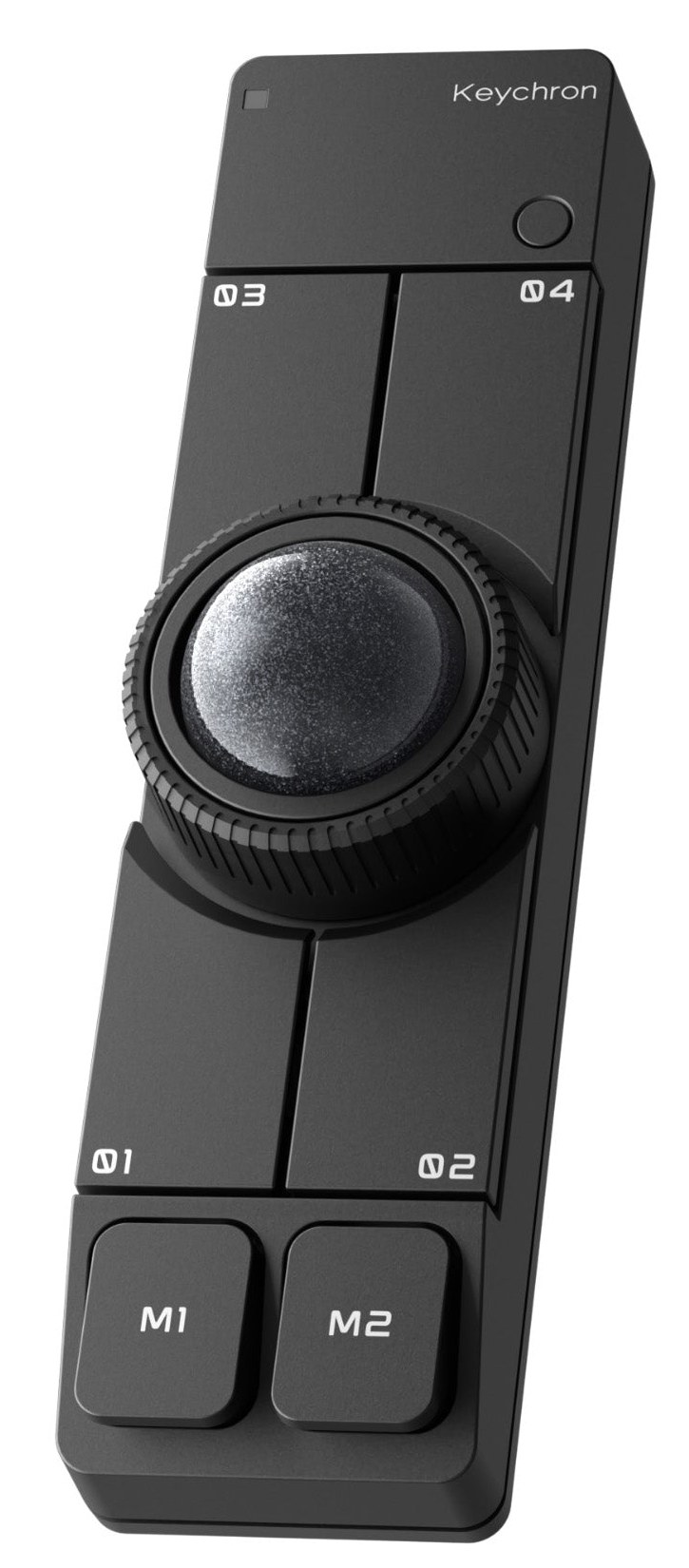
There are six customizable buttons plus an adjustable control dial. The buttons are arranged in a strip around the ball, and the artwork shows four numbered pads and two large keys labelled M1 and M2, which act as the main clicks. The dial is useful for jobs that benefit from a continuous control, such as scrolling, zooming or adjusting volume. You decide what each control does through the Keychron software, and the device supports ZMK customization, which is the same wireless-oriented firmware family found in Keychron's newer keyboards. Being able to assign shortcuts to the pads makes the Nape Pro more than a pointer; it doubles as a small control panel for the applications you use most.
Eight positions, three connections
One of the more thoughtful features is the eight-angle placement. The device can be set at different orientations, which lets you adapt it to your keyboard layout and to whether you prefer to use it with your left or right hand. Keychron describes this as eight-way switching. That is important, because a trackball under a keyboard has to fit the geometry of the keyboard above it. A compact 75% board leaves different room than a full-size one, and a left-handed user needs a different arrangement from a right-handed one.
For connection, you can choose 2.4 GHz wireless with a small receiver, Bluetooth, or a USB-C cable. The product artwork mentions Bluetooth 5.3. Having all three is handy: use the receiver at your main desk for a steady link, Bluetooth for a laptop or tablet on the go, and the cable if you would rather never think about batteries. If you already own a keyboard from the same maker, such as the wireless Keychron K2 Ultra 8K, the pair makes a coherent compact setup, though there is no requirement to use them together.
Who should consider it
The Nape Pro suits people who want to reduce hand travel and desk clutter, who are willing to learn a different pointing technique, and who do mostly precision or productivity work rather than fast-paced action games. It is a sensible option for a small home office, for standing desks with limited surface, and for anyone who finds that mouse pads and cables get in the way. It may not be the best choice for people who play twitch-based shooters, or for anyone who wants an all-purpose mouse that they can pick up and use without practice. If that describes you, a conventional pointing device is easier; for a broader overview of the options, read our guide to choosing a mouse for productivity versus gaming.
The listed price is 89.99 USD, and the device is offered in black and white. Because availability of new products can change quickly, check the current status with the retailer before planning around a specific date.
Getting used to a trackball
Expect an adjustment period. Trackball technique feels odd for the first few days, since you are used to moving an object rather than rolling a ball. Give it a fair trial of a week or two of ordinary work before judging it. Start with a moderate pointer speed, and raise it only after your accuracy improves. Use the buttons and dial for repetitive shortcuts, because that is where the Nape Pro can save the most effort. Keep the ball clean; dust and oil are the main reasons a ball starts to feel rough, and a soft dry cloth is usually enough.
Also think about your posture. The device sits close to the front edge of the keyboard, so make sure your wrists rest in a neutral position and that your chair and desk height allow your forearms to be level. Our guide to an ergonomic home office covers the wider setup, including monitor height, which affects how you hold your neck and shoulders while you use any input device.
How it compares within the site
To see the alternatives on this site, browse the mice category. For a conventional option that emphasizes precise pointing and quick scrolling, look at the Logitech MX Master 3S. For an ultralight wireless mouse from the same maker as the Nape Pro, see the Keychron G3 Ultra Light. If cable tidiness is part of your motivation, our desk cable management guide has practical ideas that pair well with a wireless input setup.
The short version
The Nape Pro is a specialist tool, and a thoughtful one. It changes where the pointer lives on your desk, trading arm movement for finger movement, and adds a dial and configurable buttons that make it useful beyond pointing. It rewards patience and suits desk-based, precision-oriented work. If reducing reach and reclaiming desk space appeal to you, it is one of the more interesting input devices to try.