Building an Ergonomic Home Office: Monitor Arms and Standing Desks
Most desk-setup upgrades focus on the gear sitting on top of the desk — the monitor, the keyboard, the mouse — but the physical position of that gear relative to your body matters just as much as the specs printed on the box. A great monitor mounted too low, or a great mouse used on a desk that's the wrong height, will still leave you with neck strain and wrist fatigue by the end of the day. This guide covers the two upgrades that do the most for genuine ergonomics: monitor arms and standing desks, plus how to fit the peripherals you already own into a setup that actually supports your body.
Why monitor height and distance matter more than most people think
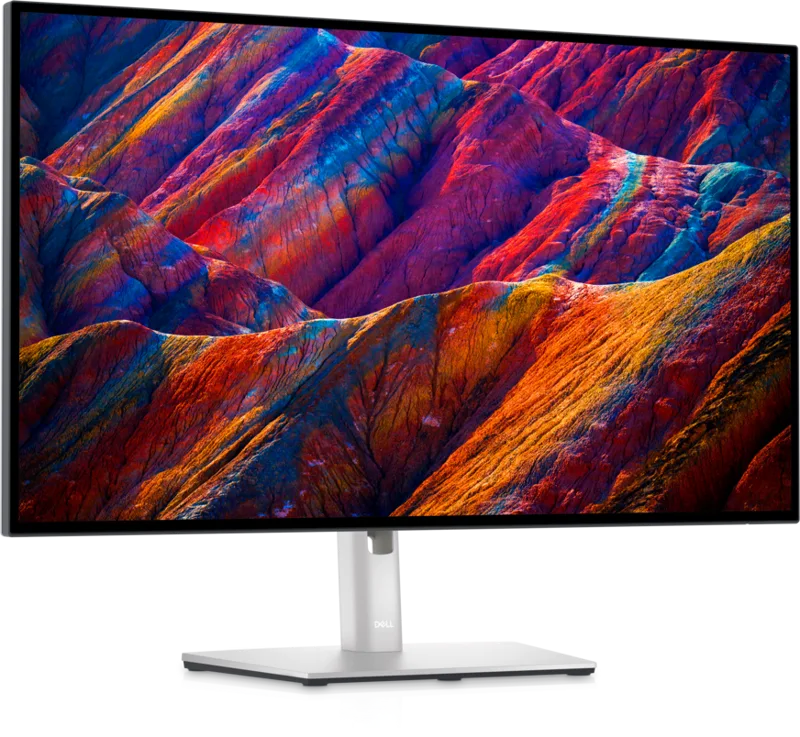
The general ergonomic guideline is that the top of your screen should sit at or just below eye level, with the whole panel roughly an arm's length away — close enough to read comfortably, far enough that your eyes aren't straining to focus at close range for hours. Most monitor stands, including the one built into a screen like the Dell UltraSharp U2723QE, only offer a modest height-adjustment range and a fixed base position, which works fine for one person at one desk height but breaks down the moment you share a desk, switch chairs, or simply have a different build than whoever the stand was designed around. A proper VESA-compatible monitor arm removes that constraint almost entirely, letting you set height, depth, tilt, and swivel independently instead of being limited to whatever range the stock stand allows.
What to actually look for in a monitor arm
Weight capacity is the first spec to check, and it needs headroom above your actual monitor's weight, not just enough to barely support it — a 27-inch panel with a metal chassis can weigh noticeably more than a similarly sized budget monitor, and an underspecced arm will either sag over time or fail to hold position at all. Gas-spring arms allow smooth one-handed height adjustment and are worth the extra cost over purely mechanical friction-joint arms if you plan to adjust position throughout the day rather than setting it once. Desk clamp compatibility matters too: check your desk's edge thickness against the clamp's range before buying, since many home-office desks with rounded or unusually thick edges don't fit a standard clamp without an adapter, and grommet-mount (through-desk) options exist specifically for desks that can't be clamped.
Dual and triple monitor arms
Multi-monitor setups benefit from arms even more than single-screen setups, since manually aligning two or three separate stock stands to the same height and angle is fiddly and rarely stays put. A dual or triple monitor arm mounts every panel to a shared pole, keeping heights and angles consistent and freeing up significant desk depth that stock stands would otherwise occupy — genuinely useful desk space if your setup includes a full-size keyboard and a productivity mouse like the Logitech MX Master 3S that both benefit from having room to move.
Standing desks: the basics that actually matter
The core value of a standing desk isn't standing all day — most ergonomics guidance actually recommends alternating between sitting and standing throughout the day rather than committing to either position permanently, since staying in any single posture for hours has its own downsides. What matters in practice is a motorized or hand-crank height range wide enough to properly fit both your standing and sitting posture, not just a desk that technically goes "up" — a desk that only reaches a few inches of adjustment doesn't meaningfully change your posture. Programmable height presets, available on most motorized desks, make switching between sit and stand a one-button action instead of a manual guess-and-check process, which in practice is the difference between actually alternating positions during the day and quietly giving up on it after the first week.
Cable management and desk-surface routing
A sit-stand desk introduces a problem fixed desks don't have: every cable connected to your monitor, keyboard, mouse, and any docking station needs enough slack to travel with the desk through its full height range without snagging or pulling a connector loose. A docking station like the Anker 575 sitting on the desk surface (rather than mounted underneath) simplifies this considerably, since it keeps the single most cable-dense hub within the moving desk's own footprint instead of anchored to a fixed point on the wall or floor. Cable sleeves and desk-mounted cable trays that move with the desktop, rather than running cables loose to a wall outlet, are worth the small extra cost to avoid a snagged cable yanking a monitor arm out of position mid-adjustment.
Keyboard and mouse position within the setup
Ergonomics doesn't stop at the monitor — keyboard and mouse height relative to your elbows matters just as much, and it's a common mistake to nail monitor height while leaving the keyboard on a desk surface that's too high for a relaxed, roughly 90-degree elbow angle. A negative-tilt or fully adjustable keyboard tray solves this independently of desk height, letting you set the desk itself at whatever level works for a standing or sitting monitor arm setup, without forcing your wrists into an upward bend at the keyboard. Mouse choice plays a role too: an ergonomic right-handed shape like the one on the Razer DeathAdder V3 reduces wrist rotation compared to a flatter, symmetrical mouse shape, which adds up over a full workday of repeated small movements.
Putting it together on a real desk
A genuinely ergonomic desk setup layers these pieces rather than treating any single purchase as a fix: a monitor arm gets the screen to the correct height and distance regardless of the stock stand's limits, a sit-stand desk with a real adjustable height range and saved presets makes alternating posture actually happen instead of staying a good intention, and a keyboard tray plus a comfortably shaped mouse keep wrists in a neutral position through both sitting and standing phases. None of these pieces need to be purchased all at once — a monitor arm alone, added to an existing desk, is often the single highest-impact ergonomic upgrade available for the price, and our home office desk setup guide covers how to prioritize the rest of the build around it.