Best Monitor for Your Home Office Desk Setup in 2026
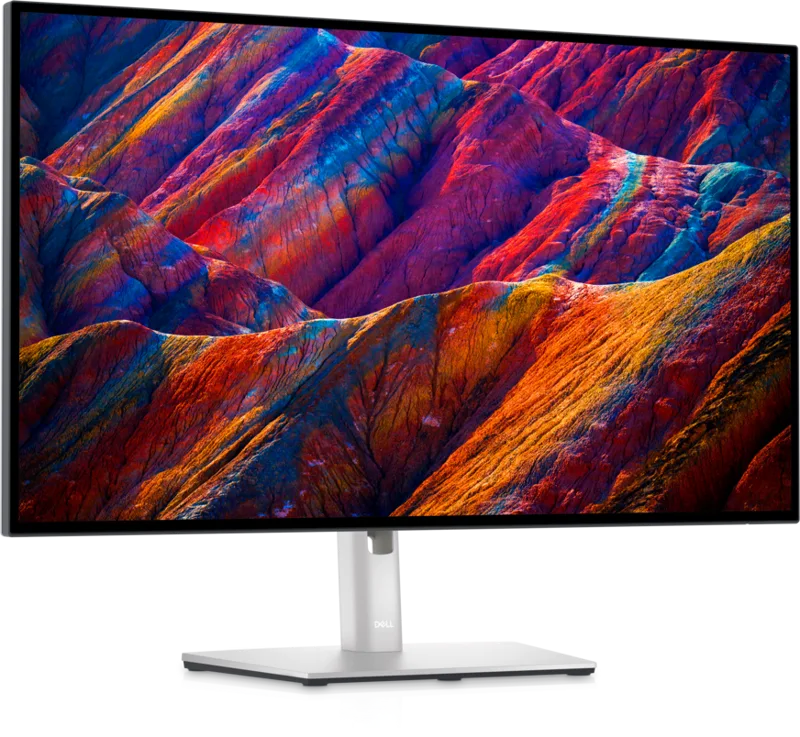
Choosing a monitor for a home office desk setup comes down to a handful of practical questions that matter far more than any single spec sheet number: how many hours a day will you actually look at it, what kind of work fills those hours, and how much desk space and cabling complexity are you willing to manage. This guide walks through the main categories worth considering and points to specific real options in each.
If your work is mostly documents, spreadsheets, and browser tabs
For pure productivity use, resolution and connectivity usually matter more than refresh rate or HDR. A 4K panel like the Dell UltraSharp U2723QE gives you sharp small text and enough real estate to comfortably tile two or three windows side by side, and its single-cable 90W USB-C input can eliminate the need for a separate docking station entirely if you're running one external display from a laptop. Its IPS Black panel also offers noticeably better contrast than a standard IPS monitor, which reduces eye strain during long dark-mode reading sessions.
If you split your time between work and gaming
A hybrid desk setup benefits from a monitor that doesn't force a trade-off between sharp text and smooth motion. The LG 27GP850-B is a strong middle-ground pick here: QHD resolution is sharp enough for daily work, 165-180Hz refresh rate makes gaming genuinely smooth, and both G-SYNC Compatible and FreeSync Premium certification mean it works cleanly regardless of which GPU brand your machine uses.
If image quality is the priority, budget allowing
For anyone willing to spend more for the best possible image, an OLED gaming monitor like the ASUS ROG Swift OLED PG27AQDM delivers per-pixel contrast and near-instant response time that no LCD panel can match, at the cost of somewhat lower sustained brightness for daytime desk use and the standard OLED usage considerations (avoiding static on-screen elements at high brightness for extended periods, which the panel's built-in pixel-shifting and refresh routines are designed to manage).
Multi-monitor setups
If you're planning two or three displays rather than one, connectivity becomes the deciding factor more than any individual panel's spec sheet. A dock capable of driving multiple displays from a single laptop cable — like the Anker 575 Docking Station for dual 4K/triple 1080p setups, or a Thunderbolt-based dock for higher-bandwidth triple-4K configurations — matters as much as the monitors themselves, since it determines how much cable clutter actually reaches your desk.
Don't forget the desk-setup basics
A monitor arm or a stand with height, tilt, and swivel adjustment (all three panels mentioned above include full-motion stands) makes a bigger day-to-day comfort difference than most people expect, letting you position the top of the screen at eye level and reduce neck strain over an 8-hour workday. Combined with a comfortable keyboard and a low-fatigue mouse, monitor ergonomics are one of the highest-leverage, lowest-cost upgrades available to anyone spending most of the day at a desk.
Quick recommendations by use case
Pure productivity, single display: Dell UltraSharp U2723QE. Hybrid work-and-gaming: LG 27GP850-B. Best possible image quality, gaming-focused: ASUS ROG Swift OLED PG27AQDM. Multi-monitor productivity setup: any of the above paired with a capable dock.
Panel technology, briefly explained
Most monitors you'll encounter shopping today use one of three panel technologies. IPS (In-Plane Switching) offers the best color accuracy and widest viewing angles among common LCD types, at the cost of contrast that's noticeably lower than VA or OLED — both the LG 27GP850-B and Dell UltraSharp U2723QE (the latter using an improved "IPS Black" variant with roughly double standard IPS contrast) fall into this category. VA panels offer higher native contrast than standard IPS but with narrower optimal viewing angles and typically slower pixel response. OLED, as covered in the ASUS PG27AQDM review, offers per-pixel contrast and instant response time that neither IPS nor VA can match, with the trade-off being lower sustained full-screen brightness and standard OLED usage considerations.
Resolution and desk distance
A useful rule of thumb: at a typical desk viewing distance of roughly 60-80cm, a 27-inch monitor benefits meaningfully from 4K resolution for text sharpness, while QHD (2560x1440) already looks very sharp at that size and distance for most users, with the difference from 4K becoming most visible in fine text and detailed photo work rather than general browsing or gaming. If your monitor will sit further back, or if you primarily game rather than do detail-oriented productivity work, QHD panels like the 27GP850-B or PG27AQDM remain an excellent, GPU-friendlier choice, since driving 4K at high frame rates demands considerably more graphics horsepower than QHD.
Budgeting for the whole setup, not just the monitor
A common mistake when upgrading a desk setup is spending the entire budget on the monitor and neglecting the stand, arm, or dock that determines how comfortably and cleanly that monitor actually gets used day to day. A monitor arm frees up desk space and allows finer height and distance adjustment than most built-in stands, and if you're connecting a laptop rather than a desktop tower, a capable docking station often matters as much to your daily experience as the monitor panel itself, since it determines whether your desk ends up with one clean cable or a tangle of adapters.
When to consider two monitors instead of one large one
For some workflows — comparing documents side by side, monitoring communications on one screen while working on another, or running reference material alongside an active task — two smaller or medium-sized monitors can be more practical than a single very large or ultrawide display, since it avoids needing to manually manage window snapping across one enormous canvas. If you're leaning this direction, prioritize a dock or GPU capable of driving both displays cleanly at your desired resolution and refresh rate before finalizing which specific monitors to buy.
A note on refresh rate for non-gaming use
Even users who don't game regularly increasingly notice and prefer higher refresh rates once they've used one, since Windows and macOS interface scrolling, window dragging, and general cursor movement all look visibly smoother above 60Hz — a genuinely underrated quality-of-life upgrade that doesn't require any gaming use case to justify, and one reason panels like the 27GP850-B appeal even to buyers who bought them primarily thinking about productivity.