Anker 575 USB-C Docking Station Review: 13 Ports, One Cable
8.5/10
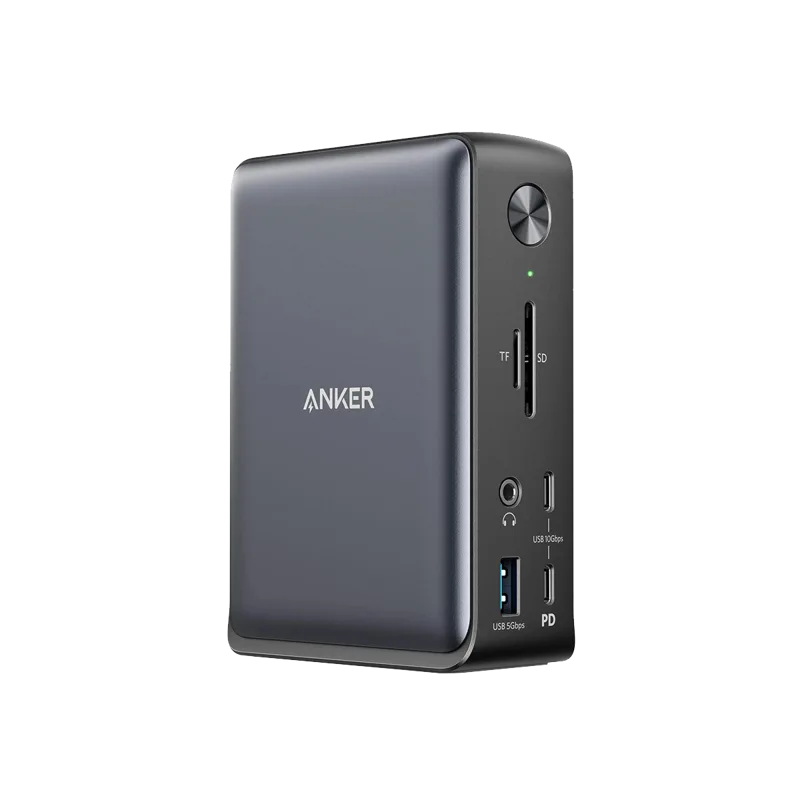
The promise of a good docking station is simple: one cable from your laptop should replace an entire desk's worth of separately-plugged peripherals. The Anker 575 USB-C Docking Station (13-in-1) delivers on that promise about as thoroughly as any dock in its price range currently does.
Port count is the headline feature: two HDMI outputs, one DisplayPort, four USB-A ports, two additional USB-C ports, a Gigabit Ethernet jack, SD and microSD card slots, and a 3.5mm audio jack — thirteen total connections from a single USB-C cable to your laptop. Video output supports either a single external display at 4K 60Hz, dual displays at 4K 30Hz, or triple displays at 1080p, covering the vast majority of common multi-monitor configurations, including a two-monitor setup built around panels like the Dell UltraSharp U2723QE or LG 27GP850-B.
Power delivery is rated at 85W to the connected laptop, which comfortably charges the large majority of ultrabooks and even many 15-16" performance laptops during normal use, using the 135W power adapter Anker includes in the box (the extra headroom above 85W covers the dock's own power draw for its ports and peripherals). Data transfer through the dock's USB-C ports reaches up to 10Gbps, fast enough for external SSDs and other high-throughput peripherals without becoming a bottleneck.
At 370 grams, it's genuinely portable if you split time between a home office and elsewhere, though most buyers use it as a permanent fixture at a single desk.
Thunderbolt vs. USB-C docking: what you're getting here
It's worth being clear about what this dock is and isn't: it's a USB-C dock, not a Thunderbolt dock, which means it doesn't support the full bandwidth or daisy-chaining flexibility of Thunderbolt-based docks like the Kensington SD5000T5 EQ mentioned in our Thunderbolt 5 docking roundup. For the large majority of hybrid workers running one or two external monitors plus standard peripherals, that distinction won't be noticeable in daily use — but power users driving triple 4K displays or needing the absolute highest sustained data-transfer speeds should look at a Thunderbolt-based option instead.
Who it's for
This is the dock for anyone who wants a genuinely comprehensive one-cable desk setup without paying Thunderbolt pricing: hybrid workers docking a laptop daily, anyone who wants Ethernet reliability over Wi-Fi, and desk setups built around one or two external monitors rather than three or more high-refresh displays.
Verdict
A well-rounded, keenly priced docking station that covers essentially every common desk peripheral in one connection — a strong pick in our docking station comparison for anyone not specifically chasing Thunderbolt-tier bandwidth.
Driver installation and setup
Most of the Anker 575's ports work immediately without any driver installation on Windows or macOS, since USB-A, Ethernet, and standard display outputs are handled by the operating system's built-in drivers — a genuine plug-and-play experience for the core use case. A small utility from Anker is available for firmware updates and to check port status, but it's optional for day-to-day use rather than a requirement to get the dock working.
Heat and sustained use
Docking stations that push this many simultaneous high-bandwidth connections (dual display output, Ethernet, multiple USB-C data streams, and 85W of power delivery all at once) generate a meaningful amount of heat under sustained load, and the Anker 575's compact plastic shell relies on passive cooling through vents rather than an active fan. In practice this keeps the dock silent, which matters for a device that sits on an otherwise quiet desk, though the shell does get noticeably warm during extended heavy use — well within safe operating limits, but worth knowing if you're sensitive to any warmth near your hand.
Cable management
Because the dock centralizes so many connections into one hub, it meaningfully simplifies cable management at the back of a desk: rather than seven or eight separate cables running from a laptop to individual peripherals, you're left with one dock, its cables going to your monitor(s) and peripherals, and a single upstream USB-C cable to the laptop — a difference that becomes especially noticeable with a standing desk that changes height throughout the day, since fewer cables need to flex or be re-routed with each height adjustment.
Value versus buying components separately
Pricing this dock against buying an equivalent set of individual adapters and hubs (a display adapter, a card reader, a USB hub, and a separate Ethernet adapter) generally favors the all-in-one dock once you account for desk space, cable count, and the convenience of a single point of connection — the main scenario where separate components make more sense is if you only need one or two of the thirteen available ports and don't want to pay for capability you won't use.
Frequently asked
Can this dock be used with a MacBook, or is it Windows-only? It works with any laptop that outputs DisplayPort Alt Mode video and USB data over USB-C, which includes recent MacBooks, though some legacy Mac-specific display scaling quirks are worth checking against your exact model and macOS version before relying on multi-display output for critical work. Does the dock work if the laptop is turned off or asleep? Most of the pass-through USB and Ethernet functionality requires the host laptop to be at least in a low-power connected state; a fully powered-off laptop will not pass data through the dock's ports. Is 85W power delivery enough for gaming or workstation-class laptops? For most ultrabooks and mainstream productivity laptops, 85W comfortably sustains full charge during use; higher-power gaming or workstation laptops that ship with 130W+ chargers may still slowly draw down battery under sustained heavy load even while connected, since their peak power draw can exceed what the dock supplies.
One more practical note: pricing on this category fluctuates with regional availability and sales events, so it is always worth comparing the current price against close alternatives in the same lineup before finalizing a purchase, rather than assuming list price is the best available offer.
In short, this remains one of the most dependable picks in its category for the specific use case it targets, and a sensible starting point if you are unsure where else to begin comparing options.