Logitech MX Master 3S Review: Still the Productivity Mouse to Beat
9.1/10
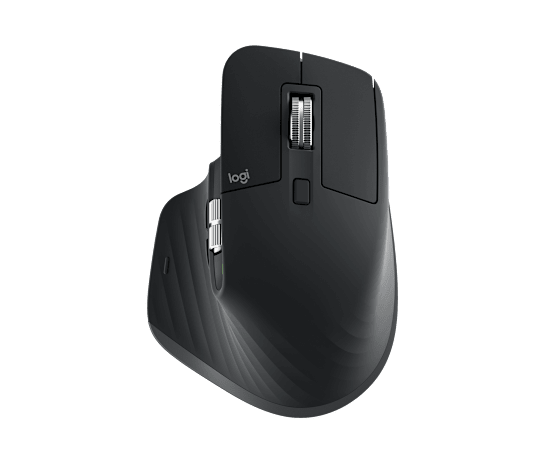
The MX Master line has been Logitech's flagship productivity mouse for years, and the MX Master 3S refines rather than reinvents the formula that made its predecessors popular with professionals who spend all day at a desk.
The headline upgrade over the previous MX Master 3 is the switch to Logitech's "Quiet Click" mechanism, which the company rates at a 90% reduction in click noise compared to a standard microswitch. In an open office or a shared living space, this is a bigger quality-of-life change than the spec sheet might suggest — it's genuinely quiet enough to use late at night next to someone sleeping without disturbing them, something the clackier mice in this category, including gaming-focused options like the Razer DeathAdder V3, are not designed around.
Sensor performance is rated at 8K DPI, which is far beyond what most users will ever need for desktop work (DPI in the 800-1600 range is typical for productivity use), but the sensor's accuracy and tracking consistency at normal cursor speeds is excellent regardless of the DPI ceiling — Logitech's optical sensors have consistently ranked among the most reliable for precise cursor work rather than raw sensitivity.
The standout feature, and the reason many buyers choose the MX Master line specifically, is the MagSpeed electromagnetic scroll wheel. It free-spins at up to 1000 lines per second when flicked, letting you scroll through long documents or spreadsheets almost instantly, while still offering a traditional notched, ratcheted feel for precise line-by-line scrolling when you scroll slowly. A secondary thumb wheel handles horizontal scrolling, which is particularly useful in spreadsheet software.
Six programmable buttons include an app-switch button and a mode-shift button for toggling scroll wheel behavior, both configurable per-application through Logitech Options+. Battery life is rated up to 70 days on a full charge with the backlight off, and the mouse charges via USB-C, with a few minutes of charging providing several hours of use if you're caught low.
Connectivity and build
The MX Master 3S connects via either Logi Bolt (a USB receiver optimized for low latency, included in the box) or Bluetooth Low Energy, and can pair with up to three devices, switching between them with a physical button on the underside. At 141g it's noticeably heavier than gaming-oriented mice like the DeathAdder V3 (62g), reflecting its productivity-first design brief rather than any attempt at competitive gaming performance.
Who it's for
This is the mouse for knowledge workers, writers, and anyone who spends hours a day scrolling through documents, spreadsheets, or web pages and wants the quietest, smoothest possible experience while doing it. It is not built for gaming — its weight, sensor tuning, and wireless latency profile are all optimized for precision desk work rather than competitive response times.
Verdict
The MX Master 3S remains the mouse to beat in the productivity category within our mouse comparison, thanks to its quiet clicks, class-leading scroll wheel, and genuinely long battery life.
Software depth: Logitech Options+
The MX Master 3S's programmable buttons are only as useful as the software behind them, and Logitech Options+ is genuinely one of the more mature peripheral configuration tools available, with per-application profiles that automatically switch button and scroll behavior based on which program is in focus — for example, the thumb wheel can be set to control horizontal scroll in a spreadsheet app but zoom level in a design or photo application, switching automatically without any manual toggling. Flow, a Logitech feature that lets the same mouse control multiple computers and even drag-and-drop files between them over a local network, is a particularly useful inclusion for anyone running a multi-monitor, multi-computer desk setup.
Ergonomics over a full workday
The MX Master 3S's shape is sculpted specifically for a relaxed, palm-down grip rather than the more upright fingertip or claw grips common on gaming mice, and the thumb rest area includes a dedicated gesture button that, combined with Options+, can trigger app switching, desktop navigation, or custom shortcuts with a single press. For anyone who spends six or more hours a day with a hand on a mouse, this ergonomic-first shape tends to reduce the wrist and forearm fatigue that flatter, more symmetrical mouse shapes can contribute to over a full workday.
Build quality and long-term durability
Logitech's Quiet Click switches are rated for a comparable click lifespan to the company's standard switches despite the reduced noise, and MX Master mice have historically had a strong reputation for surviving years of daily heavy use without the double-click or scroll-wheel issues that affect cheaper mice after a couple of years. The matte-textured top coating resists the shine that glossy plastic mice develop from skin oils over time, keeping the mouse looking presentable well into its second or third year of daily use.
Who should look elsewhere
Left-handed users should note that the MX Master 3S's shape is right-hand-specific and not comfortable for left-handed use — Logitech does not currently offer a left-handed variant of this exact model. Gamers whose primary use case is competitive play should also look toward a dedicated gaming mouse instead, since the MX Master 3S's weight, wireless latency profile (optimized for battery life and precision rather than the lowest possible response time), and shape are all tuned for sustained productivity comfort rather than competitive responsiveness.
Frequently asked
Does the Quiet Click design reduce the mouse's tactile feel along with the noise? Most reviewers and long-term users report the click still feels distinct and satisfying despite the reduced sound, since Logitech tuned the mechanical dampening rather than simply softening the switch itself. Can it be used productively without installing Logitech Options+? Basic pointing and left/right clicking work immediately with no software at all, but the signature features — the free-spin scroll wheel's mode switching, app-specific profiles, and gesture button — all require Options+ installed to configure, so skipping the software leaves real value on the table. Is 8K DPI ever actually useful for productivity work? Rarely at full sensitivity — most users set DPI in the 1000-1600 range for desktop use regardless of the sensor's ceiling, since sensor accuracy and tracking quality at normal speeds matter far more day to day than the maximum DPI number on the spec sheet.