Logitech MX Keys S
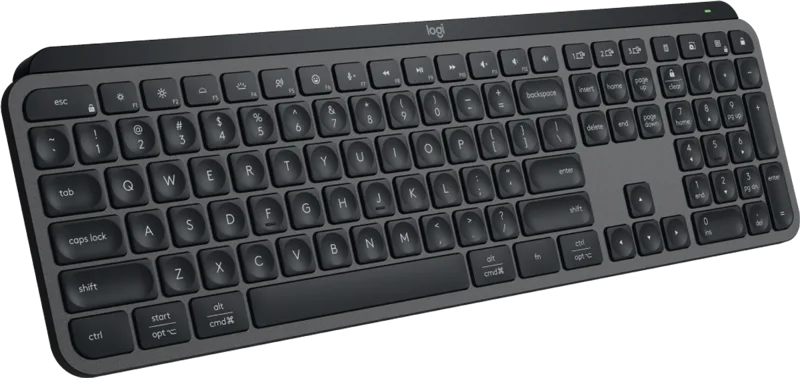
A full-size wireless keyboard with dished keys, proximity-sensing backlighting, three-device switching, Bolt or Bluetooth connection and up to 10 days of battery.
Specifications
| Layout | Full size with numeric keypad |
|---|---|
| Connectivity | Bluetooth Low Energy, Logi Bolt USB receiver |
| Multi-Device | Up to 3 devices (Easy-Switch) |
| Range | 10 m |
| Battery | 1500 mAh Li-Po, up to 10 days (backlight on) or 5 months (backlight off) |
| Charging | USB-C |
| Backlight | Smart illumination with proximity sensing |
| Keycaps | Spherically dished |
| Software | Logi Options+ (Windows, macOS) |
| Compatibility | Windows, macOS, Linux, ChromeOS, iPadOS |
| Warranty | 1 year |
The Logitech MX Keys S is a full-size wireless keyboard for people who type a lot and want a quiet, comfortable, well-connected board rather than a mechanical enthusiast's toy. It belongs to Logitech's Master Series, the company's premium productivity range, and it is designed to sit beside a mouse such as the MX Master, with shared software and the ability to move your cursor and typing across up to three computers. This page explains what the features do in daily use, what the battery figures really mean, and what to check before you buy.
Typing feel and design
Logitech describes the MX Keys S as engineered for fast, fluid and precise typing. The key caps are spherically dished, meaning that each cap has a shallow curve shaped for your fingertip; the idea is that your finger settles into the centre of the key and mistypes become less likely. Logitech also says increased key stability reduces noise, which is a genuine plus in shared offices and quiet homes. The board has a low-profile design and an angle chosen to keep your wrists in a natural position, so that longer typing sessions feel less tiring. This is not a mechanical keyboard, so you will not find hot-swap switches or a heavy clack; if you are curious about that other world, our mechanical versus membrane guide explains the differences in feel and cost. The MX Keys S is a full-size layout with a numeric keypad. Logitech points to the smaller MX Keys Mini for people who want to save desk space without giving up performance.
Smart illumination
The keys are backlit, and the lighting is proximity-aware: the backlight turns on as your hands approach the keyboard and automatically brightens or fades to suit the room. You can control the duration and brightness of the backlighting in Logi Options+. In practice this means the keyboard is legible in a dark room or on an evening flight without requiring you to fiddle with a switch, and it goes back to sleep when you walk away, which also helps the battery.
Software: Logi Options+ and Smart Actions
Logi Options+ is Logitech's companion app for Windows and macOS. It lets you customise the entire function row, so you can choose between the standard F-key functions, special functions such as Smart Actions, or shortcuts specific to your apps. Smart Actions lets you automate several steps with one keystroke, such as opening a set of apps or sending the same message, and it is handy for repetitive routines. There are also dedicated keys that Logitech says are for emoji, dictation and muting or unmuting the microphone, and the Mute/Unmute key is useful on video calls. Basic functions work without the software on systems other than Windows and macOS, but the full set of customisation needs Options+.
Connecting: Bolt, Bluetooth and Easy-Switch
You can connect either through Bluetooth Low Energy or through the Logi Bolt USB receiver that comes in the box. Logitech points out that the keyboard is not compatible with other Logitech USB receivers, so an older Unifying receiver will not work. The wireless range is given as 10 metres (33 feet), which is comfortable for a desk. Easy-Switch lets you pair the keyboard with up to three devices and change between them with a single key press, and it can switch a compatible MX mouse and the Creative Console at the same time. If your mouse supports Logitech Flow, the cursor and typing can follow you between computers automatically. The keyboard works with Windows 10 and 11, macOS 10.15 or later, Linux, ChromeOS and iPadOS 14 or later. One caution from Logitech: if you use a Mac with FileVault enabled, Bluetooth does not connect until after you log in, so the Bolt receiver is the recommended way to type your password at startup.
To keep the desk tidy alongside a wireless setup, our desk cable management guide covers where to put chargers and receivers.
Battery: read the figures carefully
The rechargeable battery is a 1,500 mAh lithium-polymer cell, charged over USB-C. Logitech states that a full charge lasts up to 10 days with the predefined settings, or up to 5 months with the backlighting turned off. Those two numbers describe very different things, so decide how you will use the keyboard: if you like the backlight on all day, plan on charging roughly every week or two; if you type in a bright room and switch the lighting off, you could go months. Battery life varies with your habits and environment. You can keep typing while charging, and the USB-C charging cable is included, though it is a USB-A to USB-C cable, so check that your desk has a matching port or a charger.
Materials and warranty
Logitech puts sustainability information on the page. The Graphite version is listed with a carbon footprint of 15.87 kg CO2e over the product's lifecycle, certified post-consumer recycled plastic in the design (the share varies by colour), low-carbon aluminium and FSC-certified packaging. The keyboard comes with a one-year limited hardware warranty. The price on the Logitech US page we checked was 129.99 USD, and the Graphite colour with a US English (QWERTY) layout was in stock. Other layouts and colours may be available elsewhere.
Getting the most from it
Spend the first ten minutes in Logi Options+. Decide which row of keys you want as your default: many people keep the media and brightness functions on the top row and add a few Smart Actions for the routines they repeat every morning. Pair the keyboard with your main computer through the Bolt receiver, then use Bluetooth for a second device such as a tablet, and check that the Easy-Switch keys are labelled the way you expect. Adjust the backlight duration so it does not stay on longer than you need. Because the keyboard sits low, a soft wrist rest can help if your desk is high; our ergonomic home office guide covers desk height and posture. Finally, keep the keyboard clean with a soft brush and a lightly damp cloth, and do not spray liquids into the keys.
Who should buy it
The MX Keys S is a fine choice for office workers, writers, students and developers who want a quiet, comfortable keyboard with good multi-device support, especially if they also use an MX mouse. It suits a shared home office where you need to switch between a work laptop and a personal computer. It is less suitable for enthusiasts who want mechanical switches, custom keycaps or a very compact board; for that, look at options such as the Keychron K2 Ultra 8K, and browse the keyboards category for others. To pair the keyboard with a mouse, consider the Logitech MX Master 4 or the MX Master 3S, which share Logitech's Options+ software, so one app manages both.