Plugable Thunderbolt 4 16-in-1 Docking Station TBT4-UDZ
A vertical Thunderbolt 4 dock with 16 ports, 98W host charging, 2.5GbE and up to four 4K 60Hz displays on Windows or two on a Mac.
Specifications
| Host Connection | Thunderbolt 4 (front), 100W Power Delivery (98W certified) |
|---|---|
| Ports | 16: 2x HDMI 2.0, 2x DisplayPort 1.2, 1x Thunderbolt 4 (to host), 1x USB-C (10Gbps), 3x USB (10Gbps), 2x USB (5Gbps), 1x USB 2.0 charging, SD and microSD (UHS-II), audio in/out, 2.5GbE |
| Displays | Windows Thunderbolt 4/USB4: up to 4x 4K 60Hz; Macs: up to 2x 4K 60Hz (base M1/M2 one display) |
| Power Supply | 135W (20V 6.75A) |
| Dimensions | 35 x 105 x 195 mm |
| Weight | 646 g |
| Compatibility | Windows 10+, macOS 11+, Thunderbolt 3/4/5, USB4, USB-C; not Linux or ChromeOS |
| Cable | 1 m Thunderbolt 4 (40Gbps) |
| Warranty | 2 years |
The Plugable TBT4-UDZ is a tall, silver Thunderbolt 4 docking station built around one idea: connect a single cable to your laptop and get two HDMI outputs, two DisplayPort outputs, a card reader, wired networking and a small forest of USB ports. Plugable lists it at 16 ports, and it also names it the winner of a "Dock of the Year 2025" title from a laptop publication, which is the company's claim rather than something we have tested. What we can do is walk through the specification page line by line and tell you where the fine print matters, because with docks the fine print is where purchases go right or wrong.
Sixteen ports, counted honestly
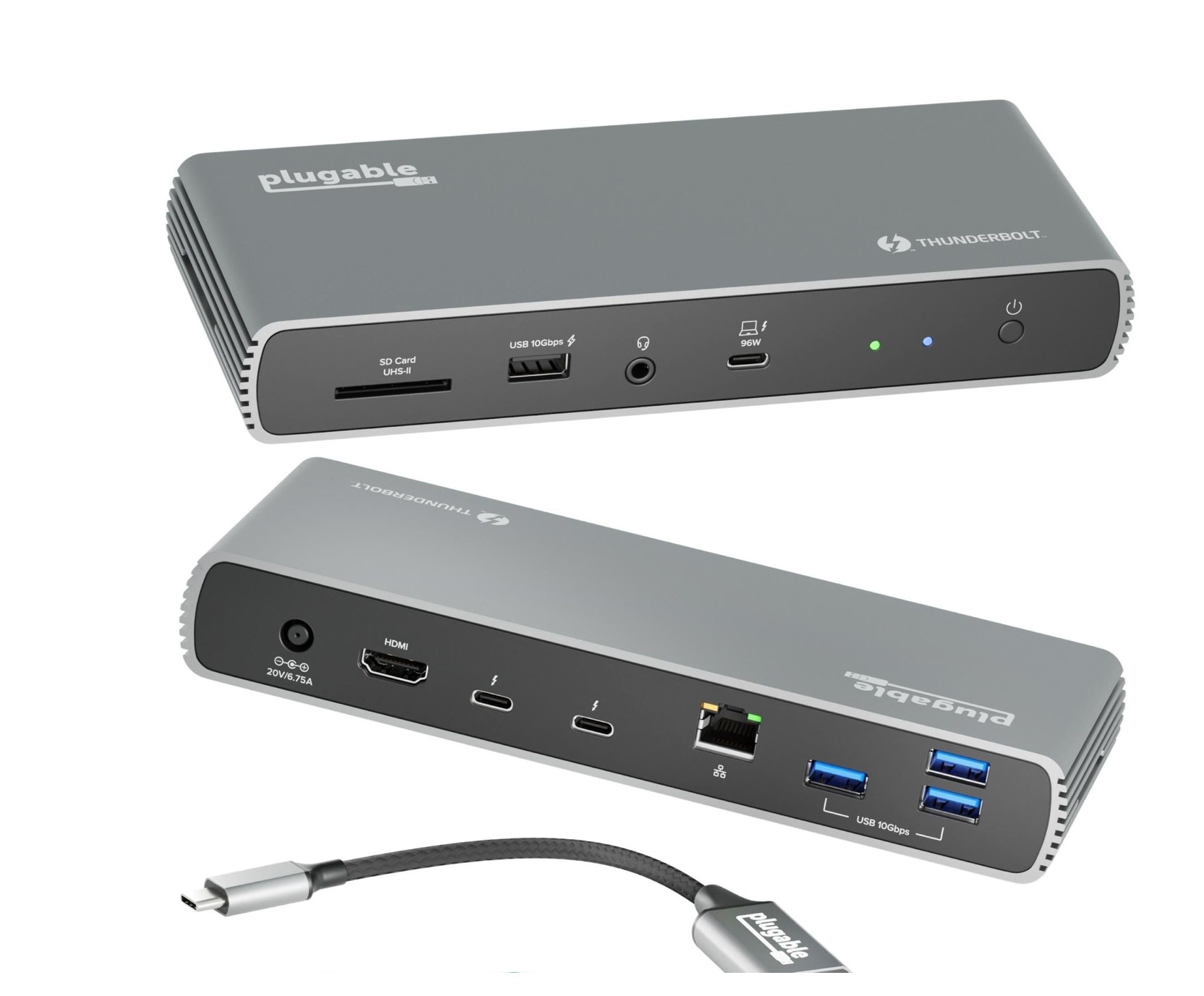
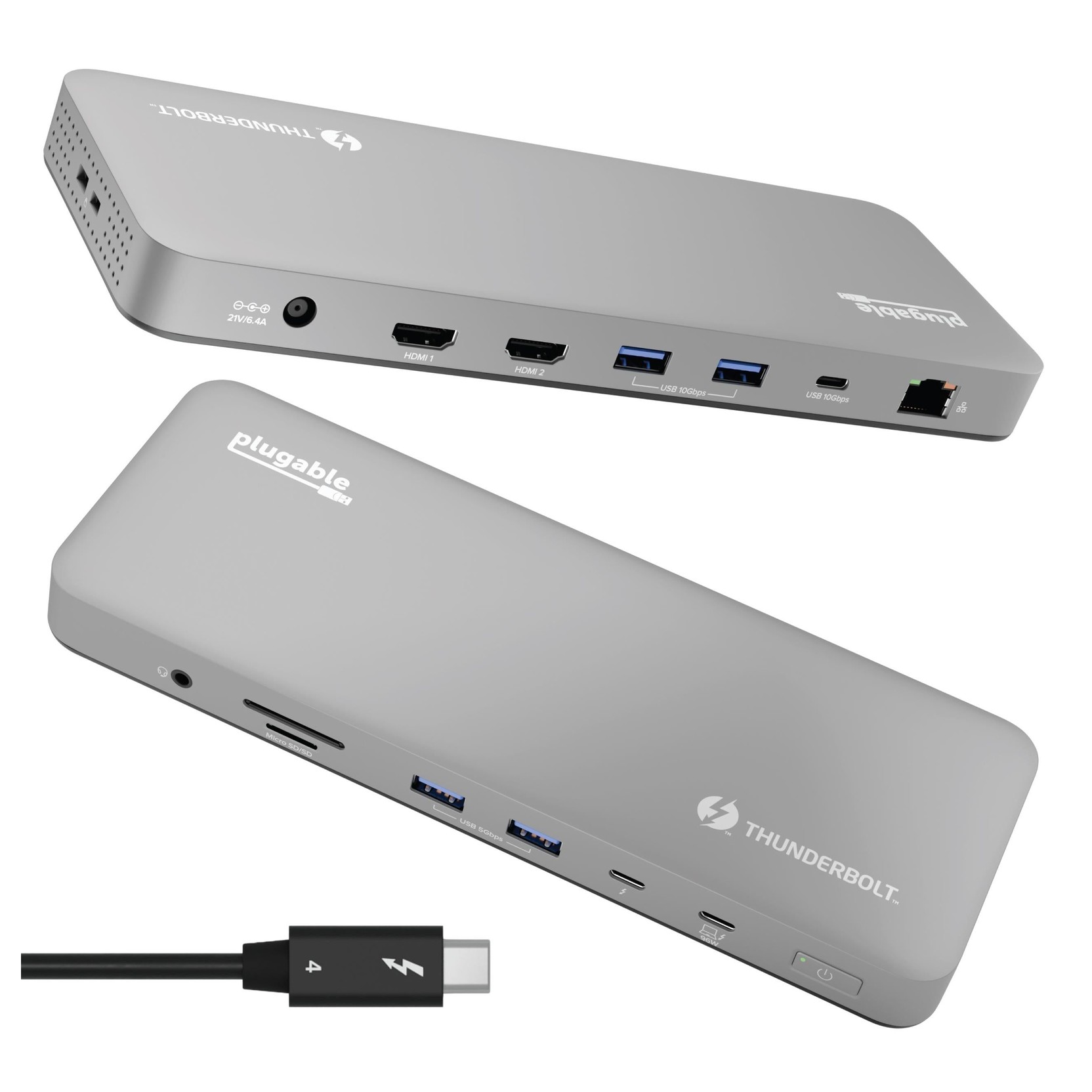
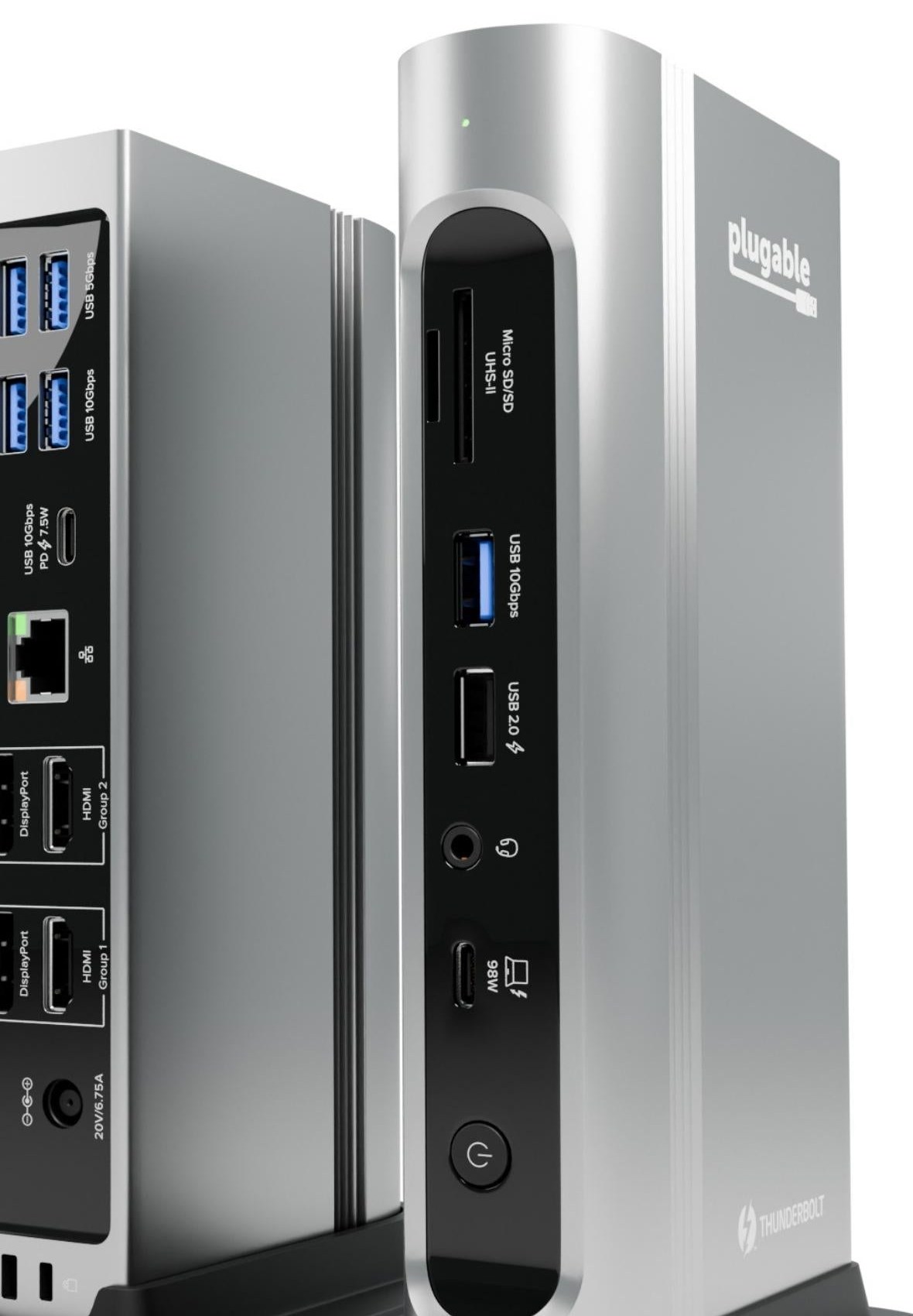
Plugable's own list reads: two HDMI, two DisplayPort, one Thunderbolt 4 port that goes to the host, one USB-C at 10Gbps, three USB ports at 10Gbps, two USB ports at 5Gbps, one USB 2.0 port for charging, SD and microSD slots, audio in and out, and Ethernet. Add them up and you reach 16 only if the two card slots count separately and the audio jack counts once. Another paragraph on the same page talks about "6x USB" ports plus one USB-C, which is the same hardware described a different way, so there is no real conflict, just marketing arithmetic. The practical summary is seven data ports for peripherals, four video outputs, one card reader with two slots and one network jack. If you are still deciding how many connections you need, our docking station buying guide explains how to count.
One detail catches people out. The Thunderbolt 4 port on the front is the connection to your computer, and the USB-C port on the rear is a 10Gbps accessory port for data and charging only. Plugable's FAQ is explicit that you cannot plug Thunderbolt devices into that rear port. If you own a Thunderbolt SSD or a Thunderbolt monitor, this dock is not the place to daisy-chain it. The front USB 2.0 port and the rear USB-C port can charge a phone or tablet at up to 7.5W.
Displays: the rules differ by computer
This is the section to read twice. On a Windows laptop with Thunderbolt 4 or USB4, the dock can drive as many as four screens at 4K and 60Hz, using two HDMI and two DisplayPort outputs and DisplayPort Multi-Stream Transport. Plugable adds that many Windows machines need a settings change, turning off the laptop's own screen, before all four external displays will work, and that Windows tends to mirror new displays by default, so you must set them to extend. A Windows laptop with only Thunderbolt 3 is limited to two 4K 60Hz screens, and a USB-C laptop without Thunderbolt may be limited to two 1080p60 displays, depending on its graphics design.
On a Mac, the story is tighter. Plugable says Macs with M4 or M5 chips, and any Pro or Max chip, can extend to two 4K 60Hz displays. Base M1 and M2 Macs support one external display through the dock. The base M3 is described inconsistently on the page: one list says base M1, M2 and M3 machines are limited to a single display, while the FAQ says the base M3 can run two external displays with the lid closed and current macOS. We would treat it as a single-display machine unless you plan to work in clamshell mode, and confirm before you buy. Intel Macs are said to manage two 4K 60Hz displays, with HDMI recommended.
Two more display rules matter. The dock works with HDMI and DisplayPort monitors up to 4K 60Hz, but Thunderbolt and USB-C monitors are not supported on its video outputs. And if you need to convert to DVI or VGA, Plugable says you need an active DisplayPort adapter, because passive "DP++" ones will not work. For a wider look at how many screens a desk can sensibly hold, see our multi-monitor and KVM setup guide.
Power: 98W to the laptop
The dock takes 135W from its power adapter (20V at 6.75A) and passes up to 100W of USB Power Delivery to the host, which Plugable qualifies as 98W certified. The dock adjusts and sends only the wattage the laptop asks for, and Plugable says the charging was lab tested to UL standards. The fine print is the usual one: high-wattage gaming and workstation laptops often cannot accept this level of charging, and not every USB-C or Thunderbolt port accepts charging at all, so you may still need the laptop's own adapter. If your laptop's charger is larger than 100W, do not assume this dock replaces it.
Networking, card reader and silicon
The Ethernet port is 2.5GBASE-T on a Realtek RTL8156B chip with Wake-on-LAN, Energy-Efficient Ethernet and 9K jumbo frames. Plugable notes that real speed depends on the operating system and host, and that you need a 2.5Gbps switch or router to see 2.5Gbps. The card reader uses a Genesys Logic GL3231S at UHS-II bus speed, listed at 312 MB/s for both SD and microSD. The video chip is a Realtek RTD2188, and HDCP is listed as supported on the video outputs. Windows users can optionally install a newer Ethernet driver from Plugable for the best performance, but drivers are not required to get started.
Size, weight and what is in the box
The dock measures 3.5 x 10.5 x 19.5 cm, or 1.4 x 4.1 x 7.7 inches, and weighs 646 grams. It stands upright on the included stand or lies flat. In the box you get the dock, a power supply and power cable, the vertical stand, a quick-start guide and a 1-metre Thunderbolt 4 cable rated at 40Gbps. That is a reasonable set, but it is worth pairing with good desk cable management, because a dock with a host cable, a power cable and up to four video cables makes a lot of wiring behind a monitor.
Compatibility and setup
The dock works with Thunderbolt 3, Thunderbolt 4, Thunderbolt 5 and USB4 hosts on Windows 10 or later and macOS 11 or later. It also works in a reduced mode on USB-C only systems: the 10Gbps ports drop to 5Gbps, and Plugable warns that video may be limited. Linux and ChromeOS are listed as not supported. On Windows, Thunderbolt security means the dock must be approved the first time it is connected, unless Secure Connect does it automatically, and on Apple Silicon Macs with macOS 13 or later you must approve the accessory too. Plugable also recommends updating Thunderbolt drivers, firmware, UEFI and graphics drivers from your laptop maker. If you are unsure which Thunderbolt generation your laptop has, read our explanation of Thunderbolt 3, 4 and 5 compatibility.
Where it sits among alternatives
Plugable's own comparison places the TBT4-UDZ next to three siblings. The TBT4-UDX1 was listed at 249.95 dollars and out of stock when we read the page, the TBT4-UD5 at 199.95 dollars and the UD-ULTC4K at 245.99 dollars. Compared with the UD5, the UDZ has more ports, four video outputs instead of two, 2.5Gbps rather than 1Gbps Ethernet and a vertical orientation option, but it gives up the downstream Thunderbolt port. If you need a daisy-chain port, our CalDigit Thunderbolt Station 4 takes the opposite approach with three Thunderbolt 4 ports, and the Anker 575 is a different mix again. You can browse the whole docking stations category to compare.
Price, warranty and support
Plugable lists the TBT4-UDZ at 289.99 dollars. The company offers a two-year warranty, lifetime technical support and a 30-day money-back guarantee when you buy direct. Prices move, so check the current one before you order.
The short version
Buy the TBT4-UDZ if you have a Windows Thunderbolt 4 laptop and want up to four displays, or a Pro or Max Mac and want two, with fast Ethernet and a full card reader. Skip it if you need a downstream Thunderbolt port, if you use Thunderbolt or USB-C monitors on the video outputs, or if you run Linux. Read the display rules for your exact computer first, and the dock will do what it says.