Docking Station Buying Guide: How Many Ports Do You Actually Need?
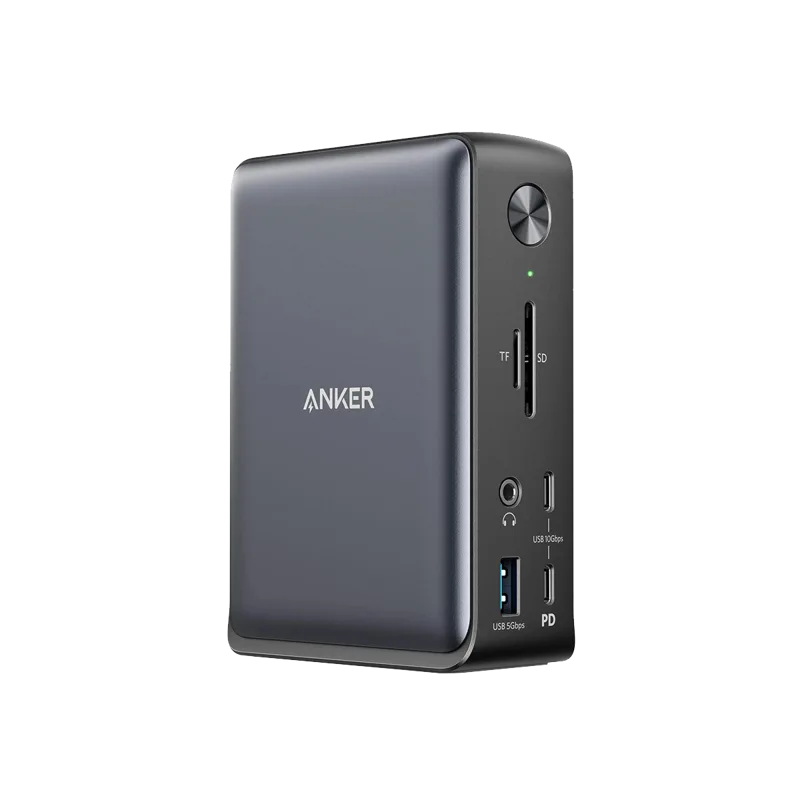
Docking stations all promise to simplify your desk, but they vary enormously in what they actually deliver, and the single most common mistake buyers make is either overpaying for ports they'll never use or underbuying and discovering six months later that they can't add a second monitor. The right dock comes down to counting exactly what you plug in today, and what you're realistically likely to add over the next couple of years.
Start by counting your actual peripherals
Before looking at any specific dock, list what needs to connect: how many monitors, whether you use wired or wireless peripherals, whether you need an SD card reader for a camera workflow, and whether your laptop needs to charge through the same cable. Most home office setups need far fewer ports than the flashiest docks advertise — a single monitor, a wired keyboard and mouse dongle, and charging covers the large majority of desks, while creative and multi-monitor setups need considerably more.
Display outputs: the port count that matters most
A dock's display output capability is usually the deciding factor. A USB-C dock with a single 4K@60Hz output, like the Anker 575, comfortably covers a one-monitor desk and even handles dual displays at a reduced 30Hz refresh if needed occasionally. Once you're running two monitors at full 60Hz or planning a three-monitor setup, you need a dock built around Thunderbolt rather than plain USB-C, since Thunderbolt's much higher total bandwidth is what actually allows multiple high-resolution displays to run simultaneously without dropping refresh rate or color depth.
USB-A vs. USB-C: check what you actually own
It's easy to assume everything is USB-C now, but most desks still have a mix — a USB-A wireless mouse or keyboard dongle, a USB-A webcam, maybe an older external drive. A dock with only two or three USB-A ports can fill up faster than expected once you add a dongle, a drive, and a headset receiver. Count your USB-A devices specifically before assuming a dock's total port count covers your needs, since docks advertise a headline "13-in-1" or "15-in-1" number that includes ports you may never touch.
Power delivery: does it actually charge your laptop?
Not all docks deliver enough wattage to charge a laptop at full speed while also driving displays and peripherals. A thin ultrabook might only need 65W, while a larger creator or gaming laptop can need 90W or more under load. A dock rated for 85W of pass-through charging, like the Anker 575, comfortably covers most mainstream laptops, but power-hungry workstations should check their charger's rated wattage against the dock's power delivery spec before assuming full-speed charging through a single cable.
Ethernet, SD cards, and the ports people forget
Wi-Fi is reliable enough for most home offices, but a wired Ethernet port on the dock removes any doubt during video calls or large file transfers, and it's a near-universal feature on mid-range and higher docks. An SD or microSD card reader matters enormously if you shoot photo or video and import footage regularly, and its absence is a real inconvenience that's easy to overlook when comparing specs sheets that emphasize display and USB counts instead.
Thunderbolt vs. USB-C docks: when the upgrade is worth it
A Thunderbolt dock like the Kensington SD5000T5 EQ costs considerably more than a standard USB-C dock, and that premium is only worth paying once your needs exceed what USB-C bandwidth can deliver — specifically, three or more high-resolution displays, very high refresh rates across multiple monitors, or fast external SSD storage where the extra throughput translates directly into time saved. For a one or two monitor desk without heavy external storage needs, a well-specified USB-C dock delivers the same daily experience at a fraction of the price. Our Thunderbolt compatibility explainer breaks down exactly what each generation changes in practice.
Cable management is part of the buying decision
A dock's real value isn't just its port count — it's collapsing five or six cables into one connection between your laptop and desk. A dock mounted under the desk or behind a monitor, paired with a properly planned cable routing setup, turns a cluttered desk into a single-cable experience every morning. Our desk cable management guide covers how to route a dock's cables so the improvement is visible, not just theoretical.
Matching a dock to three common desk types
For a single-monitor home office desk with basic peripherals, a compact USB-C dock in the $50-100 range covers everything needed. For a dual-monitor productivity setup with an SD card reader and Ethernet, a mid-range USB-C dock around $150-200, like the Anker 575, is the sweet spot. For a three-or-more-monitor creative or professional workstation, a Thunderbolt dock becomes close to mandatory, and the SD5000T5 EQ's 80Gbps of Thunderbolt bandwidth is built specifically for that tier of demand.
The bottom line
Buy based on what you actually plug in, not the headline port count on the box. Most home office desks are well served by a mid-range USB-C dock, while only genuinely demanding multi-monitor or high-throughput storage workflows justify paying the Thunderbolt premium. Counting your real peripherals before shopping saves both overpaying for capability you won't use and the frustration of discovering a bottleneck after the fact.
Frequently asked
Can one dock really replace all the individual cables on my desk? Yes, for the vast majority of setups — a single dock connection typically replaces power, video, USB peripherals, Ethernet, and audio, leaving one cable running to the laptop. Do I need a Thunderbolt dock if my laptop doesn't have a Thunderbolt port? No — a Thunderbolt dock will still work over a standard USB-C port, but it negotiates down to USB-C bandwidth and loses its main advantage entirely, so a cheaper USB-C-native dock is the better purchase in that case. How many ports is actually too many? Once a dock's port count exceeds what you can name a real use for, you're paying for marketing rather than utility — a genuinely well-matched dock rarely has more than one or two ports sitting permanently unused.