Kensington Kensington SD5600T Thunderbolt 3 and USB-C Dual 4K Hybrid Docking Station
A Thunderbolt 3 hybrid dock with 15 ports, dual 4K at 60 Hz over Thunderbolt, up to 96 W charging, UHS-II card readers and a three-year warranty; listed by Kensington as discontinued.
Specifications
| Status | Marked as no longer available on Kensington page |
|---|---|
| Host Connection | Thunderbolt 3 (0.8 m cable included), USB-C Alt Mode; TB4 laptops at TB3 features |
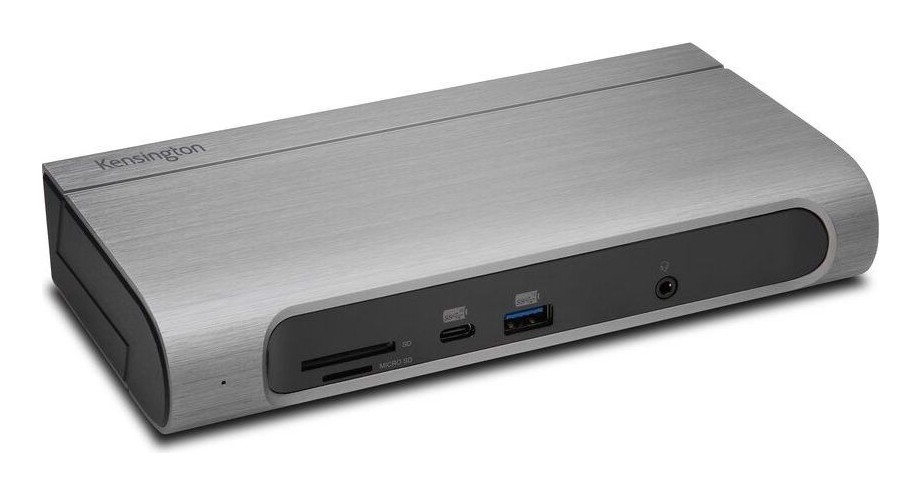
| Ports | 15: 2x HDMI 2.0, 2x DisplayPort 1.2, 1x USB-C 3.2 Gen 2, 6x USB-A (1 Gen 2 + 5 Gen 1), Gigabit Ethernet, 3.5 mm combo, SD and microSD (UHS-II) |
| Power Delivery | USB-C PD 3.0 up to 100 W (96 W certified) |
| Displays | Up to 2; Thunderbolt 3: single or dual 4K 60 Hz; base M1/M2/M3 MacBook: one display |
| Compatibility | Windows 10+, macOS 10.14+ |
| Software | DockWorks (Windows) |
| Security | Kensington Nano and standard security slots |
| Warranty | 3 years limited |
| Last List Price | US$289.99 |
The Kensington SD5600T is a Thunderbolt 3 and USB-C hybrid docking station that Kensington describes as the ultimate dock for maximum productivity and compatibility. The important thing to know first is that Kensington's own product page now marks it as no longer available and points shoppers to a replacement SKU. We still cover it because it turns up in stock, in offices and on the second-hand market, and because its spec sheet is a good example of how to read a hybrid dock. This guide is built from Kensington's product page and specification table. We have not tested the dock ourselves, and Kensington's page gives the last list price as 289.99 US dollars.
What hybrid means
A hybrid dock is designed to work with two kinds of laptop connection: Thunderbolt 3 and USB-C with DisplayPort Alt Mode. Kensington lists compatibility with Windows 10 or above and macOS 10.14 or above, and says the dock is now compatible with Thunderbolt 4 laptops at Thunderbolt 3 feature levels. The dock ships with a 0.8 m Thunderbolt 3 cable, and how much you get depends on the laptop port. Thunderbolt 3 laptops get up to 40 Gbps of total bandwidth, USB-C laptops with Gen 2 up to 10 Gbps, and Gen 1 laptops up to 5 Gbps. If the terms Thunderbolt 3, 4 and 5 are new to you, our explainer on Thunderbolt 3, 4 and 5 docking compatibility sorts them out.
Ports
Kensington calls it a 15-port dock. Counting the ports on the page, we reach the same total without the host connection: two HDMI 2.0, two DisplayPort 1.2, one front USB-C Gen 2, six USB-A, one Gigabit Ethernet, one 3.5 mm combo audio jack, and two card slots. The USB detail is as follows: the front USB-C is a 10 Gbps port with 5 V and 1.5 A charging, one front USB-A is Gen 2 at 10 Gbps with 5 V and 1.5 A, and five rear USB-A are Gen 1 at 5 Gbps with 5 V and 0.9 A. The card readers are UHS-II SD 4.0 for full-size SD and microSD, which is a good match for photographers. Ethernet is Gigabit, with the usual note that real speed depends on your network, cables and computer. Our docking station guide on how many ports you need can help you decide whether this count matches your desk.
Displays: read this section twice
The dock supports two monitors. Over Thunderbolt 3, you can run a single or dual 4K display at 60 Hz, according to Kensington's tables. The page also says you can choose between HDMI 2.0 and DisplayPort 1.2 outputs, but it does not spell out how the four video ports share bandwidth, so do not assume all four can be used at once. The page's own maximum is two monitors. Over USB-C Alt Mode, resolution drops. The spec table says HBR3 laptops can drive a single 4K monitor at 60 Hz or dual monitors at 1440p 60 Hz, and HBR2 laptops a single 4K at 30 Hz or dual 1080p at 60 Hz. The feature text, however, says dual monitors on HBR3 laptops run at 1440p 30 Hz. That is a real conflict on the page: 60 Hz in the specification table and 30 Hz in the feature text. We would trust the more conservative number until you can confirm, and remember that dual monitors need a laptop that supports MST. Apple Silicon needs special mention. The page says base M1, M2 and M3 MacBooks support only a single external display over this dock, and it points to DisplayLink-based docks for multi-monitor support on the original M1. Newer Pro and Max chips are not affected. For the bigger picture on multi-monitor docking, see our review of the Kensington SD5000T5 EQ.
Power
The dock supports USB-C Power Delivery 3.0 up to 100 W, certified at 96 W. Kensington says power delivery rates vary with the host device, and laptops must support Power Delivery for USB-C charging. That is enough for most modern laptops, including the newer MacBook Pro Kensington cites as ideal, but not for the laptops that want more than 100 W. The dock has its own power supply, not a bus-powered design.
Software, security and mounting
Installation is plug and play with no drivers, but Kensington recommends its DockWorks software for best connection, performance and security, and the spec table says DockWorks is for Windows only. A Kensington Nano Security Slot and a standard Kensington Security Slot are both listed, so you can lock it down in an office. The dock can stand horizontally or vertically, and Kensington sells an optional Docking Station Mounting Bracket, part K34050WW, for a zero-footprint mounting under a desk or on a wall. The page also says the dock is optimised for Windows 11 with Snap Layouts and Snap Groups support, which relates to how Windows arranges windows across a multi-monitor setup rather than to the dock hardware.
Who it suits today
The dock makes sense for hot-desking and mixed offices, where some people carry Thunderbolt laptops and others USB-C, because it takes both. It also suits a photographer who wants UHS-II card slots. It makes less sense as a first buy for a new setup, since it is discontinued, its display bandwidth is limited to Thunderbolt 3 levels, and Kensington's current catalogue includes newer options, such as the SD5000T5 EQ and the SD5700T Thunderbolt 4 Dock in our database. If you find one in stock at a good price, check that your laptop sits on one of the supported connection types, and check the return policy and warranty status, because Kensington's three-year limited warranty applies to the original purchase and the page does not say how it treats resold units.
Checklist before you buy
- Confirm your laptop has Thunderbolt 3, Thunderbolt 4 or USB-C with DisplayPort Alt Mode and Power Delivery.
- If you use an M1, M2 or M3 base MacBook, plan for one external display only.
- Decide whether 1440p or 4K at 60 Hz on two monitors matters, and by which connection you will get it.
- Check whether you need a laptop charger above 96 W.
- Look at newer options in the docking stations category for a supported, current product.
In short, the SD5600T is a capable and flexible hybrid dock with excellent card slots and a sensible USB spread, held back by its age, its Thunderbolt 3 ceiling and a display table that contradicts itself. Treat it as a bargain to consider only if the price is right and you have confirmed the display rules for your laptop.