OWC OWC Thunderbolt Hub
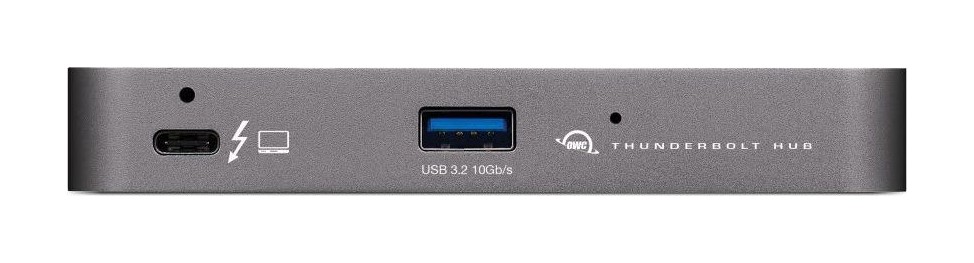
A compact Thunderbolt hub that turns one port into four Thunderbolt (USB-C) ports and one USB port, with 60 W charging for the laptop and support for two 4K or one 5K/6K/8K display.
Specifications
| Ports | 4 Thunderbolt (USB-C) ports (one host) and 1 USB port |
|---|---|
| Host Port | 40 Gb/s Thunderbolt, up to 60 W power delivery |
| Displays | Up to two 4K or one 5K/6K/8K (depends on host) |
| Extras | Adjustable LED, Kensington Nano Security Slot |
| Cable | 0.8 m OWC Thunderbolt (USB-C) cable included |
| Compatibility | Thunderbolt 3 Mac (macOS Big Sur or later), Thunderbolt 4 PC; USB-C machines also work |
The OWC Thunderbolt Hub is a deliberately simple product. It does not try to be a full desktop dock with Ethernet, card readers and an audio jack. It does one thing: it takes the single Thunderbolt port on your computer and turns it into four Thunderbolt (USB-C) ports and one USB port, powers your laptop while it does so, and gives you a way to connect drives, displays and accessories without daisy-chaining them into one fragile line. This guide is based on OWC's own product page for the hub. That page shows no price and gives no port-by-port speed table for the USB port, so we quote none, and we have not tested the hub ourselves.
What you get: four Thunderbolt ports, one USB port
OWC describes the hub as a way to transform a single-port Mac, PC or tablet into a four-port workstation. The four Thunderbolt (USB-C) ports and one USB port expand your connections. One Thunderbolt port is the host connection that goes to your computer, so the count of ports available for devices is a matter of how you read the page: OWC's headline talks about a four-port workstation, and the hub's front panel shows one Thunderbolt port and one USB port on the front. Treat the exact split as something to confirm with the specification tab on OWC's page before you buy, because the summary text is a marketing headline and not a port table.
One port to the computer, 60 W back
The host port is a 40 Gb/s Thunderbolt (USB-C) port that OWC says keeps a notebook powered and charged with up to 60 W of power delivery. That is enough for many thin-and-light laptops, but if your laptop wants more than 60 W under load, it may charge slowly or not at all while you work, so check your charger's rating. OWC also says the Thunderbolt 4 and USB ports keep powering or charging connected devices even when the computer goes to sleep, which helps if you charge a phone or a tablet from the hub overnight.
Same performance as a direct connection
OWC's key promise is that devices work the same whether plugged into the hub or directly into your machine. That is the reason to choose a Thunderbolt hub over a plain USB-C hub. You can add high-performance storage, including NVMe solutions, audio and video mixers, a phone or tablet and desktop accessories such as a keyboard or mouse. You can also place several bus-powered portable SSDs directly on the hub. In a classic daisy chain, OWC explains, bus-powered drives had to go at the end of the chain, and the chain allowed only one of them. With the hub, you can connect multiple portable SSDs directly. For a wider explanation of why cable generation matters, read our article on Thunderbolt 3, 4 and 5 compatibility.
Three separate chains, not one
A daisy chain has a weakness: pull out any device except the last one and everything after it disconnects until the chain is restored. OWC's hub lets you create three separate tree-branch chains, so you can remove a device from one chain without disturbing the others, and it says you can add three bus-powered Thunderbolt devices on top. In a studio where a drive is unplugged and moved often, that alone can justify the hub. A one-click Dock Ejector utility, free from OWC, lets you safely disconnect several drives together so all data is written first, and the same software includes a driver that enables an Apple SuperDrive connected to a USB-A port to play and burn discs.
Displays
Through Thunderbolt, the hub can connect a single 5K, 6K or 8K display or up to two 4K displays, according to OWC. Actual support depends on your host computer: OWC tells you to review the display specifications of your system for the maximum resolution, refresh rate and colour depth over Thunderbolt. It also says a larger display on an iPad or Chromebook needs a USB-C adapter, sold separately. A hub with only Thunderbolt ports has no HDMI or DisplayPort outputs of its own, so you will connect displays with a Thunderbolt cable or a USB-C to DisplayPort or HDMI adapter. Our docking station buying guide explains how to count the ports you need.
Compatibility
OWC lists any Apple M1 Mac, any Intel Mac with Thunderbolt 3 and any Thunderbolt 4 PC, and says the ports are fully USB4 future compatible. Supported Macs need macOS Big Sur or newer, and supported Windows PCs need Thunderbolt 4 ports. The hub also works as a USB-C hub with non-Thunderbolt machines such as Chromebooks and iPads, where you can add USB devices, but those machines will not get Thunderbolt performance or Thunderbolt displays beyond what their own port allows. OWC states the hub is Thunderbolt-certified for Mac and Windows.
Build details
An adjustable LED lets you customise the illumination for your workspace or dim it for late work. A Kensington Nano Security Slot is there for anti-theft cabling. A certified 0.8 m OWC Thunderbolt (USB-C) cable is in the box; OWC also sells other lengths, and ClingOn cable stabilizers, sold separately, screw into the housing to reduce strain on connectors. Those extras are meaningful for a busy desk where cables are pulled and knocked.
A short checklist before you buy
Use what OWC states to check your own setup. Does your computer have a Thunderbolt port? A Mac needs Thunderbolt 3 and macOS Big Sur or newer, or an Apple M1 chip, and a Windows PC needs Thunderbolt 4. Can your laptop live with up to 60 W of charging? Do your displays fit within two 4K screens or a single 5K, 6K or 8K screen, as your own host allows? Are the devices you own Thunderbolt (USB-C), Thunderbolt 2 with an adapter, or plain USB? Is 0.8 m of cable long enough to reach the hub from where it will sit? If every answer is yes, the hub fits. If not, you may want a dock with more power or more ports.
Who should buy it
Choose this hub if your laptop has only one or two Thunderbolt ports, you own fast drives and want them to keep their speed, and you would rather add ports than replace a whole dock. Choose a full dock if you also need Ethernet, an SD card reader and an audio jack; OWC sells those separately and we cover two of them on our site. Compare with our pages on the Thunderbolt 4 Slim Hub Pro and the Anker 555 USB-C Hub to see how a Thunderbolt hub differs from a USB-C hub, and read our cable management guide for tips on tidying the cables you will end up with. Browse everything in the docking station category.