Multi-Monitor Setups and KVM Switches: Running Two Computers on One Desk
Plenty of desks now run two computers side by side — a work laptop and a personal PC, or a primary machine and a secondary one for testing — sharing the same pair of monitors, keyboard, and mouse. Doing that cleanly takes more than just extra cables. This guide covers the two real approaches, hardware KVM switches and software-based switching through a docking station, how they differ, and how to wire a two-monitor, two-computer desk without a permanent tangle.
What a KVM switch actually does
KVM stands for Keyboard, Video, Mouse. A dedicated KVM switch is a small box that sits between two (or more) computers and one set of peripherals, and lets you flip between which computer is currently receiving keyboard and mouse input and sending video output to your monitor — usually with a button on the box itself, a hotkey combination, or both. The core appeal is that you keep exactly one keyboard, one mouse, and one or two monitors on your desk regardless of how many computers you're actually running, instead of duplicating an entire peripheral set for a second machine you only use occasionally.
True hardware KVM switches range from simple single-monitor, two-port models to higher-end units supporting dual 4K monitors, USB peripheral hubs, and audio switching all in one box. The tradeoff is speed and simplicity versus cost: a basic KVM switch is inexpensive but only handles the raw keyboard/mouse/video signal, while multi-monitor 4K-capable KVMs with USB hub pass-through cost considerably more and need to support enough bandwidth for two 4K signals plus USB 3.0 data without introducing lag.
The docking station alternative
A different approach avoids a dedicated KVM box entirely: connect both computers to a modern USB-C docking station with DisplayLink or Thunderbolt video output, and use software-based input switching instead. Many docking stations, including higher-end Thunderbolt models like the Kensington SD5000T5 EQ, support daisy-chaining or simultaneous connections that make switching between a laptop and a desktop largely a matter of which cable is active, sometimes automated through the dock's own switching logic. This route tends to suit people who primarily alternate between a laptop and a desktop rather than two always-on desktops, since laptops are naturally designed to be plugged and unplugged from a single dock cable.
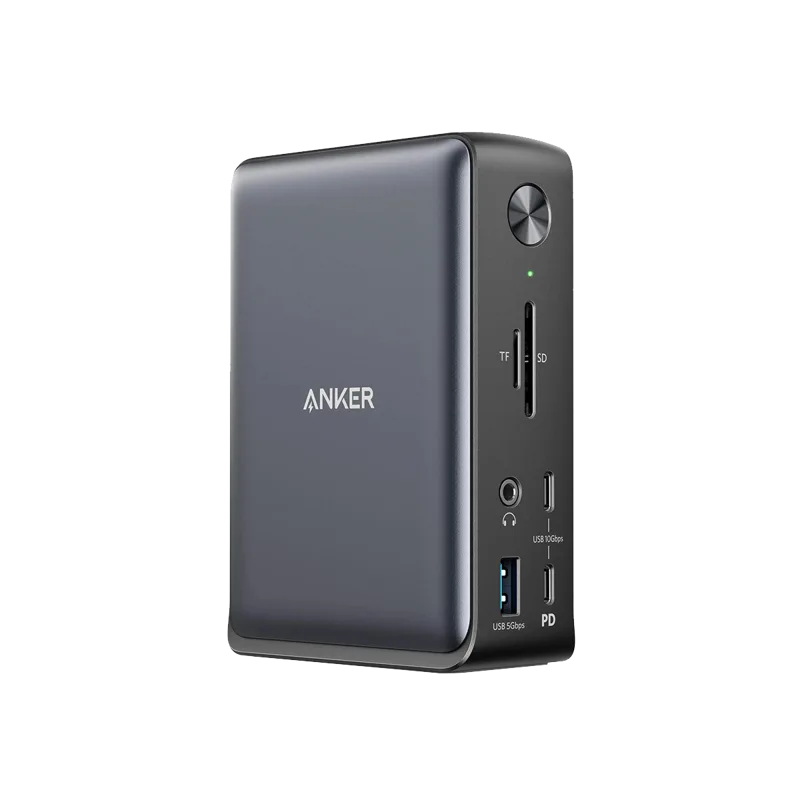
A simpler docking station like the Anker 575, with its 13-in-1 port selection and single-cable 85W charging, works well for a one-laptop desk that occasionally hosts a second machine, though it wasn't designed as a true multi-computer KVM replacement — check the Anker 575 product page for its exact video output limits before assuming it can drive two full 4K displays from two separate hosts simultaneously.
Picking the right approach for your setup
- If you're switching between two always-on desktop towers, a dedicated hardware KVM switch is usually the cleaner, lower-latency choice — it's built for exactly that job and doesn't depend on either machine being asleep or awake.
- If one of your machines is a laptop that travels, a docking station approach is usually more convenient, since undocking the laptop naturally frees the monitor and peripherals for other use without touching a KVM switch's controls.
- If you need dual 4K monitors switched together in sync, confirm your KVM (or dock) explicitly lists dual 4K@60Hz support — many budget switches only handle a single 4K display or drop to 30Hz across two, which is noticeably choppier for everyday desktop use.
- If audio matters (headset or speakers), check whether the switch handles 3.5mm or USB audio pass-through, since some budget KVMs only switch video and USB data, leaving you to unplug an audio cable manually.
Cable planning before you buy anything
Before ordering a KVM switch or dock, count exactly what needs to travel between machines: video output per monitor (DisplayPort or HDMI, and which version), USB ports for keyboard, mouse, webcam, and any USB storage, and whether you want audio switched automatically. Buy cables matching the actual bandwidth you need — a DisplayPort 1.2 cable will bottleneck a 4K/144Hz monitor even if the KVM switch itself supports higher bandwidth, so cable quality genuinely matters here, not just the switch's spec sheet. It's worth reading our broader desk cable management guide before finalizing a two-computer setup, since a KVM adds an extra hub of cables that's easy to let sprawl if you don't plan the routing first.
A practical two-monitor, two-computer layout
A common, low-friction setup: mount both monitors on monitor arms so they can be repositioned once you settle on which one becomes "primary" for daily work. Run both monitors' video cables to the KVM switch (or dock) rather than directly to either computer, plug your keyboard and mouse into the KVM's console-side USB ports, and connect each computer to its own numbered input on the switch. Label the switch's ports and the cables themselves — with two machines and two monitors, four to six cables converging in one spot gets confusing fast without labels, especially if you need to troubleshoot which cable belongs to which machine six months later.
Keep the switch itself within easy reach, not tucked behind a monitor arm or under a stack of other gear — the entire point of a KVM is fast, low-friction switching, and that only works if pressing the button or hotkey is actually convenient. For teams or setups where uptime matters, test the failover behavior too: some KVM switches briefly drop the video signal during a switch, which can disconnect an active video call on the machine you're leaving, so it's worth knowing that behavior before you're mid-meeting.
Is it worth the extra hardware?
For anyone regularly working across two machines — a locked-down work laptop and a personal desktop, a primary rig and a test bench, or a gaming PC and a streaming PC — a KVM switch or dock-based switching setup removes the daily friction of unplugging and replugging keyboards, mice, and monitor cables by hand. It's a modest one-time cost against months or years of avoiding exactly that hassle, and it keeps a two-computer desk looking like a one-computer desk from a cable-management standpoint.