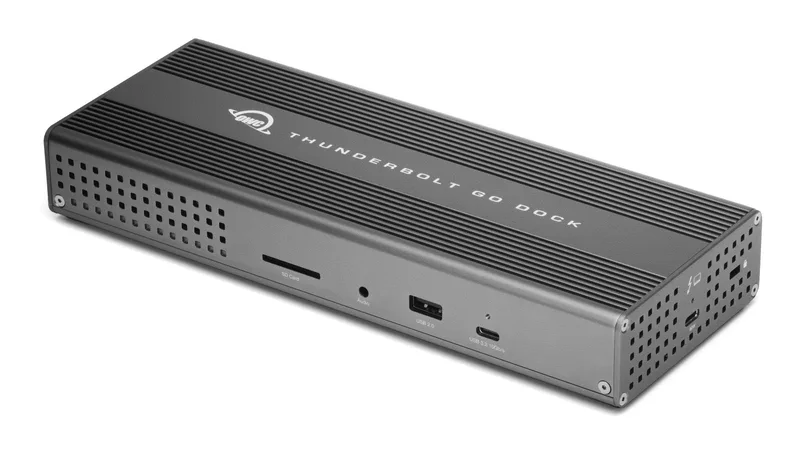
OWC OWC Thunderbolt Go Dock
A rugged, fanless aluminium Thunderbolt dock with a built-in power supply, 2.5 Gb/s Ethernet, HDMI 2.1, an SD card reader and up to 90 W laptop charging.
Specifications
| Ports | 11 ports including 2.5 Gb/s Ethernet, HDMI 2.1, SD card reader, extra Thunderbolt ports |
|---|---|
| Power | Built-in power supply (standard figure-8 cord), up to 90 W laptop charging |
| Ethernet | 2.5 Gb/s |
| Displays | One 8K or up to two 4K (host dependent) |
| Build | Aluminium, fanless |
| Cable | 0.7 m OWC Thunderbolt (USB-C) cable included |
| Extras | MDM compatible, Thunderbolt Share ready, Intel Evo accessory program |
The OWC Thunderbolt Go Dock starts from one irritation that anyone who carries a dock will recognise: the power brick. A typical dock needs its own heavy adapter, and if you lose it you are stuck. OWC's answer is to build the power supply into the dock, so a lightweight standard power cable replaces the brick, and to wrap the whole thing in fanless aluminium. It is marketed to mobile professionals, hybrid workers and creatives who set up a desk in a client's conference room, a hotel business centre or an event booth. This guide is based on OWC's own product page. That page prints no price or weight, so we quote none, and we have not tested the dock ourselves.
The built-in power supply
This is the feature the dock is named for. OWC says the built-in power supply means one lightweight power cable replaces a heavy adapter, that a single cable powers the dock, the laptop and all devices, and that it delivers 90 W of laptop charging. The power cord is a standard two-prong "figure 8" cable, which OWC points out you can borrow from another device or replace at a local shop if you misplace it. It contrasts this with a dock that has a proprietary brick, which OWC says leaves you dead in the water if you lose it. That is a fair practical point for travel. It also cleans up a desk: one less brick means less clutter, so our desk cable management guide applies even more strongly to a dock like this.
What is on it
OWC says the Go Dock turns one Thunderbolt port into 11 ports. The page lists what you can do rather than a port-by-port table: charge your laptop, connect one 8K display or up to two 4K displays, connect portable SSDs and large desktop RAID storage, add an extra Thunderbolt port, connect and charge USB drives and accessories, connect to wired networks, connect a digital audio interface, read and write SD cards, and connect two Thunderbolt daisy chains. It also names an HDMI 2.1 port with full HDR, a built-in SD card reader and a 2.5 Gb/s Ethernet port. As with the rest of OWC's range, the USB port types are not spelled out in the text we read, so confirm them on the Specs tab if the exact mix of USB-A and USB-C matters to you.
2.5 Gb/s Ethernet
OWC highlights the Ethernet port. Many computers and tablets have no network port, or a 1 Gb/s one, so OWC says the dock's 2.5 Gb/s port lets you work up to 2.5 times faster over wired networks, and suits a NAS for faster access, backup and 4K streaming and editing. There is a catch that OWC states in its footnotes: 2.5 Gb/s needs compatible hardware and cabling, meaning Cat 5e cable at a minimum and Cat 6 or later strongly recommended. The dock cannot make a 1 Gb/s switch run faster.
Displays
With Thunderbolt and an HDMI 2.1 port with full HDR, the dock can connect up to an 8K display or two 4K displays, according to OWC. Its display table repeats the list from the rest of the range: 4K at 30 Hz and at 60 Hz, dual 4K at 60 Hz, 5K at 60 Hz for the Apple Studio Display or LG UltraFine 5K, dual 5K at 60 Hz for the Apple Studio Display, 6K and dual 6K at 60 Hz for the Pro Display XDR and 8K at 60 Hz, all dependent on the host. Rows show which Apple silicon Macs, Intel Macs with Thunderbolt 3, iPads, Chromebooks and Windows PCs manage which. The footnote is the usual one: some refresh rates need DisplayPort 1.4 HBR3 and DSC 1.2 in both display and host, and some Thunderbolt ports are limited to DisplayPort 1.2, which may reduce refresh rate or resolution. A further note says that using displays through the dock's USB-C (10 Gb/s) port needs extra drivers and a USB-C to HDMI or DisplayPort adapter, sold separately. For help thinking about how many screens you need, see our docking station buying guide.
Thunderbolt Share and Intel Evo
OWC says the dock is engineered for the Intel Evo Laptop Accessory Program and for Thunderbolt Share. Thunderbolt Share is described as a digital KVM that lets you share devices and content between two Thunderbolt computers from one Thunderbolt port. That could suit someone who moves between a laptop and a desktop. OWC recommends pairing the dock with an Intel Evo certified laptop for an assured experience. We did not test either feature.
MDM and IT
OWC says the dock is compatible with mobile device management, so an organisation can remotely manage all Go Dock workstations wherever employees work. It states that other docks without MDM do not measure up, which is a marketing comparison we cannot check. For a company that buys docks in numbers and wants them managed, it is a point in favour.
Build quality
OWC calls the construction tank-like aluminium that handles bumps, drops and constant travel, with no delicate plastic parts and no fans to break, and a fanless design that travels anywhere without overheating. These are OWC's descriptions and not a drop-test rating. The dock comes with a certified 0.7 m OWC Thunderbolt (USB-C) cable, and OWC sells ClingOn cable stabilizers separately that screw into the housing to reduce cable strain. A free Dock Ejector utility safely disconnects several drives with one click, and includes a driver so an Apple SuperDrive on a USB-A port can play and burn discs.
Compatibility, and one thing that does not quite line up
The host port uses a USB-C connector to work with Thunderbolt or USB-C Macs, PCs, iPads, Chromebooks and Android devices, and the page says this includes USB4 machines. OWC's marketing line claims the dock works with every device you own, from older Thunderbolt 2 Macs to the latest tablets and Windows machines. The footnotes are stricter: Thunderbolt and Thunderbolt 2 Macs are supported through a USB-A host connection, and a Thunderbolt or Thunderbolt 2 host connection is not supported. Thunderbolt 2 devices can be attached to the dock with a certified adapter and a Thunderbolt 2 cable, at up to 20 Gb/s, but without notebook charging. Read the headline as broad and the footnote as accurate. Our Thunderbolt 3, 4 and 5 explainer covers the differences between generations.
Tablet use
OWC suggests that with the dock a tablet can become a full computing platform: read and write SD cards, share files on a fast network, offload storage to an external drive, use a larger display with a mouse and full-size keyboard, or run a desktop audio or podcast setup. As always, tablet display support varies, so check the display table for your model.
Who should buy it
Buy the Go Dock if you move between locations, hate carrying a power brick and want fast wired networking and two-display support wherever you land. Choose the OWC 11-Port Thunderbolt Dock if the dock will stay on a desk and you want its 96 W charging and card reader. For compact alternatives, compare the Anker 575 Docking Station and the Kensington SD5700T. Everything is listed in the docking station category.