Belkin Connect Pro Thunderbolt 4 Dock
A Thunderbolt 4 dock with 12 ports, dual 4K display output, up to 90 W laptop charging and 40 Gbps of bandwidth over a single cable.
Specifications
| Ports | 12: SD reader, audio in/out, USB-C 3.1 Gen 2 (PD 3.0), 2x Thunderbolt 4, 2x HDMI 2.0, Gigabit Ethernet, 2x USB-A 3.1, 2x USB-A 2.0 |
|---|---|
| Data Transfer | Up to 40Gbps |
| Display Support | Single 8K@30Hz / dual 4K@60Hz (triple on compatible laptops) |
| Power Delivery | Up to 90W to host (120W power supply) |
| Certification | Thunderbolt 4, USB4-compliant |
| Dimensions | 200 x 73.2 x 33.9 mm |
| Warranty | 2 years |
The Belkin Connect Pro Thunderbolt 4 Dock turns one cable into a full desk: monitors, network, storage, accessories and laptop power. It is a compact, Thunderbolt 4 certified dock with 12 ports, aimed at people who plug a laptop into the same setup every day and want to do it with a single connection. This page explains what the dock provides, how to read the display and power figures, and what to check before you buy, since dock compatibility is where most disappointments happen.
What a Thunderbolt 4 dock does for you
A laptop usually has only a few ports, and using all of them at a desk means plugging in and unplugging a bundle of cables every time you arrive or leave. A dock collects those connections into one device that stays on the desk. The laptop connects with one Thunderbolt cable, and through it the dock passes video, data and power. Belkin includes a 0.8 m Thunderbolt 4 cable and a 120 W power supply, so you can start straight away. Arriving at your desk becomes a matter of plugging in a single cable; the monitors wake up, the keyboard and mouse connect, the network link comes up and the laptop starts charging.
Thunderbolt 4 is a certification level that guarantees a set of minimum capabilities, including 40 Gbps of bandwidth, support for two 4K displays and compatibility with USB4. The dock is described as Thunderbolt 4 certified, USB4-compliant, and backward compatible with Thunderbolt 3 and older USB standards. To understand how the standards relate to each other, read our news article on Thunderbolt 3, 4 and 5 docking compatibility.
The ports
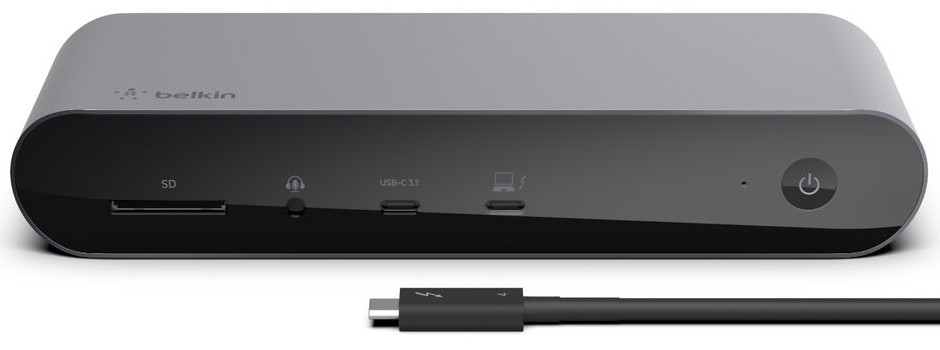
The dock offers 12 ports in total. There is an SD card reader and an audio in/out jack, which is handy for photographers and for headsets. There is a USB-C 3.1 Gen 2 port with Power Delivery 3.0, useful for charging a phone or tablet. Two of the ports are Thunderbolt 4; the one marked with a laptop symbol on the front is the connection to your computer. You get two HDMI 2.0 ports, one Gigabit Ethernet port, two USB-A 3.1 ports, and two USB-A 2.0 ports. The 2.0 ports are slower, and are best kept for keyboards, mice and dongles, while the faster ports suit external drives.
How many ports do you really need? Our docking station buying guide helps you count your devices and think about which will be plugged in permanently. A useful rule of thumb is to list everything on your desk today and add two spare ports for future purchases.
Displays: reading the numbers carefully
Belkin states resolutions of up to 8K at 30 Hz for a single display, and up to 4K at 60 Hz on dual displays. Triple-display support is mentioned for compatible laptops, with video resolution varying according to what the laptop itself can drive. This is the part that deserves the most attention. The dock does not create display capability out of nothing; it passes on what your laptop and its operating system can provide. Some laptops, for example, allow only one extra screen through a dock even if the dock has two video outputs.
Belkin lists two important limits. M1-based MacBooks can enable only one extended screen, and Intel-based MacBooks need a USB-C-to-video adapter to enable two extended screens. iPads with USB-C can enable only one extended screen. On Windows laptops, the result depends on the graphics hardware and drivers. Before buying, check your laptop's specification for the number of external displays it supports through Thunderbolt. Our multi-monitor setup guide covers related questions such as switching one screen between two computers.
Power delivery and charging
The dock can power a laptop with up to 90 W over the same cable, and it also powers accessories. Belkin's overview gives 90 W, while a comparison table on the same page shows a slightly higher figure; plan on 90 W as the safe number. Compare that with what your laptop charger supplies. If your laptop ships with a 65 W adapter, 90 W is more than enough. If it uses a 100 W charger, the dock will charge it, but perhaps more slowly under heavy load, such as gaming or rendering. The power supply of the dock is 120 W, and it must cover the laptop, the connected devices and the dock itself, so avoid connecting very power-hungry accessories to every port at once.
Data speed and networking
The link between the laptop and the dock runs at up to 40 Gbps, which is enough for fast external drives and for multiple displays at once. Gigabit Ethernet gives a wired network connection that is usually more stable than Wi-Fi, valuable for video calls and large transfers. If you need faster than gigabit networking, check the specification of the model you choose, since some docks in Belkin's own range offer 2.5 Gb Ethernet. Belkin also offers a free dock utility software for network security features.
Size and build
The dock is about 200 mm wide, 73 mm deep and 34 mm tall, a slim horizontal box that fits below a monitor or beside a stand. The front carries the SD reader, audio jack, the fast USB-C port, the laptop Thunderbolt port and the power button, as shown in the product image; the rest of the connections are around the back, which keeps cables away from your hands. Belkin says its docks undergo over 120 quality tests, and the product is TAA compliant for use in government applications. A two-year warranty applies.
Compatibility
The dock is compatible with Thunderbolt 4 ports and with devices that have a video-enabled USB-C port. It supports Windows 10 RS3 or newer, macOS Big Sur (version 11) or newer, and iPadOS on Type-C iPads. If your laptop has only a plain USB-C port without video output, this dock will not work as intended, so check that your port carries the Thunderbolt or DisplayPort symbol.
Who should buy it
This dock suits professionals and students who work at one desk with a laptop, a couple of screens and a handful of accessories. It is especially good for hybrid workers who take the laptop home and come back, since a single cable makes the daily routine painless. It is less suited to people with only a single monitor and few devices; a smaller, cheaper USB-C hub could be plenty. Nor is it ideal for someone who needs three high-resolution monitors from a laptop that supports only two.
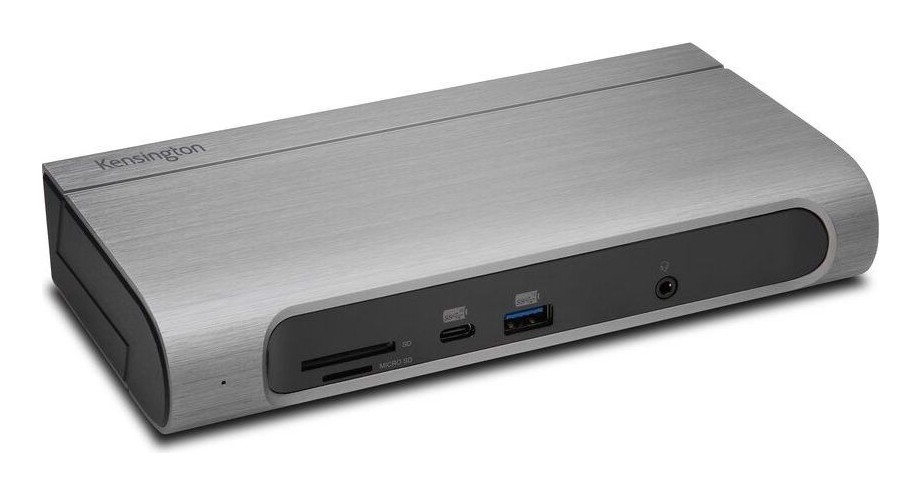
The listed price is 299.99 USD. To see how it sits alongside other options, compare it with the Anker 575 Docking Station, or with the higher-end Kensington SD5000T5 EQ Thunderbolt 5 dock, which is built for faster multi-display setups. The whole range is in the docking stations category.
Setup tips
Use the supplied Thunderbolt cable, because a poor-quality cable can limit speed or display support. Plug the power supply in before connecting the laptop. Connect the displays to the dock, then restart the laptop once, so that the operating system sees everything properly. Keep the dock in a spot with airflow, since docks warm up under load. Label your cables, and use a cable clip to keep the Thunderbolt lead from dangling. If your desk still looks messy, the ideas in our desk setup guides on monitor placement and cabling can help.
The short version
The Connect Pro Thunderbolt 4 Dock is a well-equipped, certified dock that reduces a desk to one cable: 12 ports, 40 Gbps, dual 4K at 60 Hz, up to 90 W charging and broad operating system support. Its value depends on matching it to your laptop's display and power capabilities, so check those first and it will serve you well.