Monitor Color Accuracy and Calibration: What Actually Matters
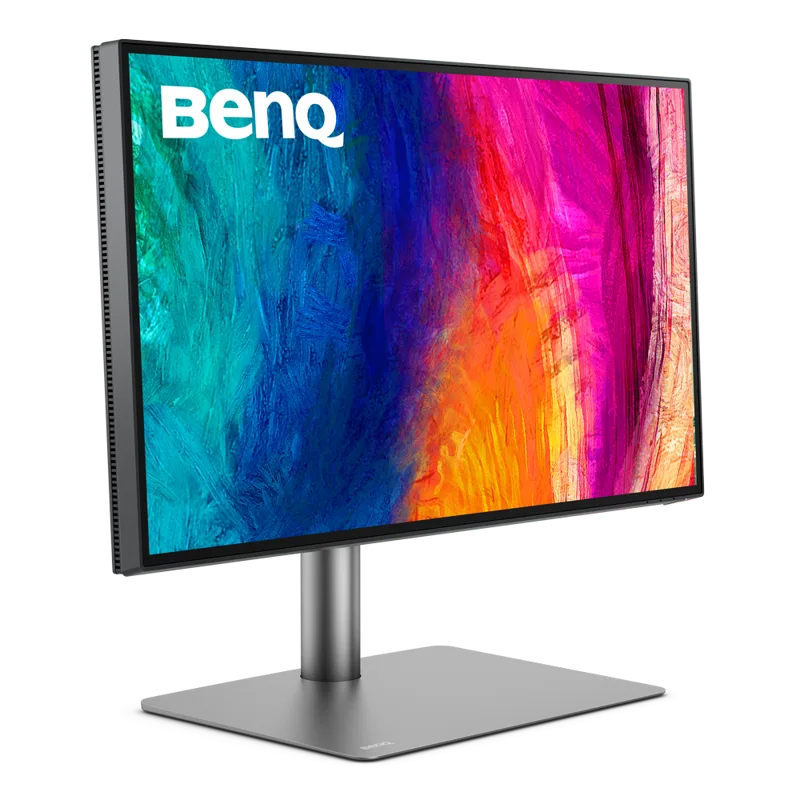
Two monitors can share the same resolution and refresh rate and still look completely different side by side — one renders skin tones accurately and whites that stay neutral, the other tints everything faintly green or leaves reds oversaturated. The difference usually comes down to color accuracy and calibration, a topic that gets far less attention than panel type or refresh rate but matters enormously if you edit photos, grade video, do print design, or simply want a monitor that shows content the way its creator intended.
Why Color Accuracy Matters
For anyone doing color-sensitive work — photography, video editing, graphic design, print layout — an inaccurate monitor is actively misleading. You end up correcting an image on screen that already looks correct, then discover on a calibrated display (or in print) that skin tones are too warm or blacks are crushed. Even outside creative work, an accurate monitor simply looks better: whites read as white instead of blue-tinted or yellow-tinted, and color transitions in photos and video look smooth instead of banded.
Understanding Color Gamuts: sRGB, DCI-P3, and Adobe RGB
A color gamut is the range of colors a display can physically reproduce. sRGB is the baseline standard for web and most everyday content — nearly every monitor covers close to 100% of it. DCI-P3, originally a digital cinema standard, covers a noticeably wider range, especially in reds and greens, and has become the practical target for modern content creation and HDR. Adobe RGB, favored in some print workflows, extends further into greens and cyans than either of the other two. The BenQ PD2725U, reviewed elsewhere on this site, ships with 95% P3, 100% sRGB coverage — enough to cover both everyday sRGB content and the wider gamut needed for HDR and modern color grading, without paying for coverage most people never use.
What Delta-E Actually Means
Delta-E (ΔE) is the standard measurement of color error — how far a displayed color drifts from its true target value. In plain terms, a Delta-E under 1 is imperceptible to the human eye, under 2 is generally considered accurate enough for professional work, and above 3 starts to become visible as a slight but noticeable color shift. Manufacturer marketing rarely publishes exact Delta-E figures, which is why independent reviews and hands-on calibration reports matter more than a spec sheet claim of "accurate color."
Factory Calibration vs. Hardware Calibration
Factory calibration means the monitor ships from the manufacturer already adjusted against a reference target, sometimes with an individual calibration report included in the box. It's a strong starting point, but it degrades over weeks and months as the panel's backlight and pixels age. Hardware calibration goes a step further: a colorimeter — a small sensor puck that sits against the screen — measures actual output and writes correction directly into the monitor's internal lookup table (on monitors that support it) or into a color profile your operating system applies. Software-only calibration, by contrast, only adjusts your graphics card's output curve, which is less precise and doesn't correct panel-level inconsistencies the way true hardware calibration does.
Panel Type Still Sets the Ceiling
No amount of calibration can exceed what the underlying panel is physically capable of. The Dell UltraSharp U2723QE, built on IPS Black technology, reaches a 2000:1 static contrast ratio — roughly double a typical IPS panel's ~1000:1 — which means calibrated blacks actually look dark instead of washed-out gray, a meaningful difference for photo and video work where shadow detail matters. Wide viewing angles matter too: IPS-family panels (including the Nano IPS in the LG 27GP850-B) keep color consistent even off-axis, which is important if more than one person reviews color-critical work on the same screen.
Do Gaming Monitors Need Color Accuracy Too?
Color accuracy isn't purely a productivity concern. HDR gaming and cinematic content both rely on wide, accurately mapped color gamuts to look right — a monitor with wide but poorly calibrated color can actually undersell a game's intended art direction. High-refresh gaming panels like the OLED-based ASUS ROG Swift PG27AQDM ship with wide DCI-P3 coverage specifically because HDR and modern game color grading assume it; without accurate color mapping, HDR highlights can look blown out or muddy rather than punchy.
Calibration Tools and How Often to Recalibrate
Consumer colorimeters are affordable enough that professional calibration is no longer an enterprise-only expense — a decent hardware colorimeter, used with the manufacturer's calibration software or a third-party tool, takes ten to fifteen minutes to produce a fresh, measured profile. As a rule of thumb, recalibrate every two to four weeks for color-critical work, or at minimum after 100 hours of use, since LED backlights drift gradually even without any visible warning sign. If you don't own a colorimeter, at minimum use your monitor's factory-calibrated preset mode (often labeled "sRGB" or "Adobe RGB" in the on-screen menu) rather than the default "vivid" or "standard" picture mode, which is tuned for eye-catching retail-shelf contrast rather than accuracy.
Choosing Between Accuracy and Everything Else
Not every desk needs a color-critical monitor. If your work is spreadsheets, code, or general browsing, a color-accurate panel is a nice-to-have rather than a requirement, and refresh rate or resolution probably deserve your budget more. But if color decisions you make on screen need to hold up elsewhere — in print, on a client's monitor, in a video that will be graded and re-viewed — a panel with documented factory calibration and a wide, accurately mapped gamut pays for itself the first time you don't have to redo a project because the colors were wrong from the start.
For a broader look at how panel technology itself affects color and contrast, see our OLED vs. IPS vs. VA panel technology guide, and if you're still deciding on screen size and resolution, our 27-inch QHD vs. 32-inch 4K guide covers that decision in depth. Full hands-on details on the two monitors referenced above are in our BenQ PD2725U review and our Dell UltraSharp U2723QE review.
Frequently Asked Questions
Do I need a colorimeter if I just watch movies and browse the web? No — factory calibration and a sensible picture-mode preset are more than sufficient for casual viewing; hardware calibration earns its cost when your output (a print, a client deliverable, a graded video) has to match what you saw on screen. Can a TN or budget VA panel be calibrated to be accurate? Calibration can correct color temperature and gamma drift on any panel, but it can't add gamut coverage or contrast the panel doesn't physically have, so the ceiling is always set by the hardware first. Does calibration affect gaming performance? No — color calibration adjusts the color pipeline, not the display's refresh rate, response time, or input lag, so a calibrated gaming monitor loses nothing in competitive responsiveness.