Mouse DPI, Sensors, and Polling Rate Explained: What Actually Matters
Every mouse product page throws a wall of numbers at you: DPI, IPS, polling rate, acceleration, lift-off distance. Marketing copy treats bigger numbers as automatically better, but for most desks that is simply not true. Understanding what each spec actually controls — and where the returns diminish — will save you from overpaying for a number you will never use and help you pick the mouse that actually fits how you work or play.
What DPI Actually Means (and Why More Isn't Always Better)
DPI, or dots per inch, describes how many counts a sensor reports for each inch the mouse physically travels. A mouse set to 800 DPI needs a longer physical swipe to move the cursor across a 4K display than a mouse set to 1600 DPI. Technically the correct term is CPI — counts per inch — since "DPI" originally described printer resolution, but the industry uses the two interchangeably and no manufacturer is going to change that now.
Here is the part marketing pages skip: raw sensor DPI capability and usable DPI are different things. A sensor rated for 30,000 DPI, like the optical sensor in the Razer DeathAdder V3, is not something any human uses in daily play. Competitive FPS players typically run somewhere between 400 and 1600 effective DPI, because at higher sensitivities small hand tremors translate into large, uncontrollable cursor jumps. The huge DPI ceiling exists mostly so the sensor has enormous headroom before it introduces tracking error at any realistic speed — it is a quality signal for the sensor's internal precision, not a setting you are meant to max out.
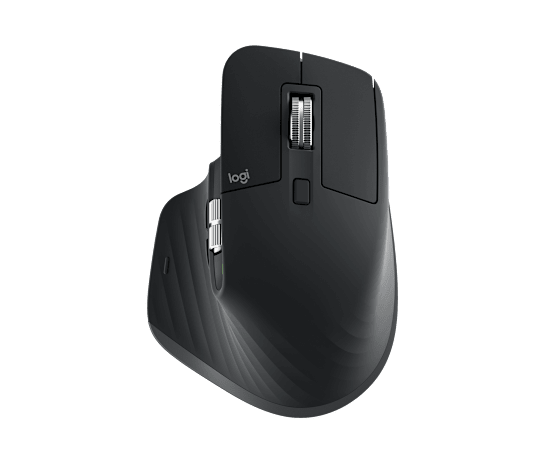
Productivity mice take a different approach. The Logitech MX Master 3S ships with an 8K DPI optical sensor, but its real selling point for desk work is precision at moderate, comfortable sensitivities across multiple monitors, not chasing a spec sheet number. If your day is spreadsheets and browser tabs rather than headshots, sensor ceiling matters far less than tracking accuracy and a scroll wheel you can actually feel.
Sensor Technology: Optical vs Laser, and What IPS Actually Limits
Nearly every serious mouse sold today uses an optical sensor rather than the older laser variety. Optical sensors read a small area of the surface using an LED and a tiny camera, then calculate movement between frames; laser sensors do something similar with a laser diode but tend to over-amplify surface texture, which can introduce tracking inconsistency on glossy or uneven mousepads. That is why laser sensors have mostly disappeared from performance mice.
IPS — inches per second — describes the maximum speed at which a sensor can track movement before it starts dropping counts or "flicking out." This matters far more for competitive gaming than DPI does. A sensor with a low IPS ceiling will lose accuracy during a fast 180-degree flick, even if its DPI number looks impressive on the box. Modern flagship optical sensors, including the ones used in current Razer and Logitech gaming mice, comfortably track well past 650 IPS, which covers even the fastest low-sensitivity flick shots used in competitive shooters.
Acceleration — how consistently a sensor reports counts regardless of how fast you move the mouse — is the third piece often bundled into "sensor quality." A sensor with poor acceleration handling will make a fast flick travel farther on-screen than the same physical distance moved slowly, which is exactly the kind of inconsistency that makes muscle memory unreliable. This is why enthusiasts obsess over sensor generation numbers rather than raw DPI: a well-tuned mid-tier sensor at 1600 DPI will often outperform a cheap sensor claiming 16,000 DPI on paper.
Polling Rate: From 125Hz to 8000Hz
Polling rate determines how often the mouse reports its position to your PC, measured in Hz. The old standard was 125Hz — the mouse checks in 125 times per second, producing roughly 8 milliseconds of input latency in the worst case. Most gaming mice today ship at 1000Hz by default, cutting that worst-case delay to 1 millisecond. The Razer DeathAdder V3 pushes this further with 8000Hz HyperPolling, reporting position 8000 times per second for closer to 0.125ms of latency.
Whether that jump from 1000Hz to 8000Hz is perceptible depends entirely on context. Competitive players in fast-paced shooters can sometimes feel the difference in click-to-pixel responsiveness, and it costs essentially nothing once the hardware supports it — modern USB controllers and gaming-grade CPUs handle the extra interrupt load without issue. For office work, web browsing, or even most single-player gaming, the difference between 1000Hz and 8000Hz is not something you will consciously notice, and running very high polling rates can occasionally increase CPU usage slightly on older systems, so it is worth testing rather than assuming higher is always free.
Matching Specs to How You Actually Use a Mouse
If you spend your day switching between documents, spreadsheets, and a browser across two or three monitors, prioritize a mouse with a reliable scroll wheel, comfortable ergonomics for long sessions, and enough sensor precision to feel smooth at moderate DPI — the MagSpeed electromagnetic scroll wheel on the MX Master 3S, rated at 1000 lines per second, solves a completely different daily annoyance than a 30K DPI gaming sensor ever will. Multi-device Bluetooth or a low-latency USB receiver matters more here than polling rate.
If you play fast, competitive games, prioritize a sensor with a high, clean IPS ceiling, a polling rate of at least 1000Hz, and a shape that matches your grip style — palm, claw, or fingertip. Weight matters too: the DeathAdder V3 comes in at just 62 grams, which reduces fatigue during long flick-heavy sessions compared to older 90-100 gram designs. Onboard DPI presets, usually 3-5 stored profiles, let you switch between a low sniping sensitivity and a higher general-purpose one without opening software mid-match.
Don't buy on DPI headline numbers alone. Read full reviews that discuss actual tracking behavior, check the mice comparison hub for verified specs across current models, and if you're choosing between a productivity-first and gaming-first mouse, our productivity vs. gaming mouse guide breaks down the tradeoffs in more depth. The right mouse is the one whose sensor and polling characteristics match what your hands actually do all day, not the one with the biggest number on the box.